Published 2026-10-30.
Last modified 2026-10-31.
Time to read: 4 minutes.
llm collection.
- Large Language Models with Ollama
- Using Ollama and Gemma-4 with Visual Studio Code
- Claude Code Is Magnificent, But Anthropic is Rapacious
- MiniMax-M2/3 Review
- Running MiniMax M3.1 Flash on Claude Code CLI
- LLM Societies
- AI Planning vs. Waterfall Project Management
- Early Draft: Multi-LLM Agent Pipelines
- Gemini vs. Sonnet 3.5 and 4.6 for Meticulous Work
- Gemini Code Assist
- Antigravity
- Best Local LLMs for Coding
- Aider: A Lean and Focused Agentic Programming Assistant
- Mini-Agent Review
- Running GLM on the Ollama app
- Codex: Agentic Programming with ChatGPT in Visual Studio Code
- MiniMax Web Search with ddgr
I often move between computers while working on a project. I want an easy way of copying a Claude-compatible session from one computer to another. At the time of writing, I mostly use MiniMax M3 Flash but this technique should work with all Anthropic-compatible LLMs.
Claude Code keeps the whole conversation in one file. If you copy that file to
the other machine and save into the right location, you will be able to pick
the conversation up again. This article shows how, with only
ssh and scp.
This article is a follow-on to Running MiniMax M3.1 Flash on Claude Code CLI. I am
using the minimax command alias, defined in that article, to
launch MiniMax 3.1 Flash on the Claude Code CLI.
Caveats
- The transcript is the entire conversation. If anything secret was displayed during the session, the secret will be stored in the transcript, which gets copied.
- The two machines must agree on the path to the project(s) to be mirrored, or the slugified directory names will differ and the mirrored projects will not work.
Syncthing
If you actively work on two different machines (like a desktop and a laptop), you can use Syncthing to keep selected or all Claude session folders mirrored.
- Exit Claude Code on both machines before syncing chat sessions to prevent database lock conflicts.
- Install Syncthing on both machines.
-
To sync all chat sessions, add the
projects/directories within your Claude configuration directory. Type this incantation on both machines to discover the paths to theprojects/subdirectories of the configuration directories:Shell$ echo ${CLAUDE_CONFIG_DIR:-~/.claude}/projects /home/mslinn/.minimax/projects
-
Sync one or more
projectssubdirectories.
Cloud Sync
Unless cloud sync or Syncthing is used, it is awkward to prevent the copied chat from diverging from the original chat. The copy of the chat session is a snapshot. Anything said in the chat after the copy is made will not appear in other copies. In other words, the chat transcripts diverge and cannot be combined.
However, if the .claude folder is stored on a cloud drive like
Dropbox, Google Drive, or iCloud, and a symbolic link (symlink) points to to
it from both computers, then you can resume a chat from any connected
computer.
Only one computer can be active in the chat session at time
If you want to use a cloud drive to alternate between two computers, you must practice turn-based access. Here are two alternativies; the first uses the chat session UUIDs, the second uses named chat sessions.
Referring By Session ID
-
On Computer A, run the
/statuscommand to show the session ID.
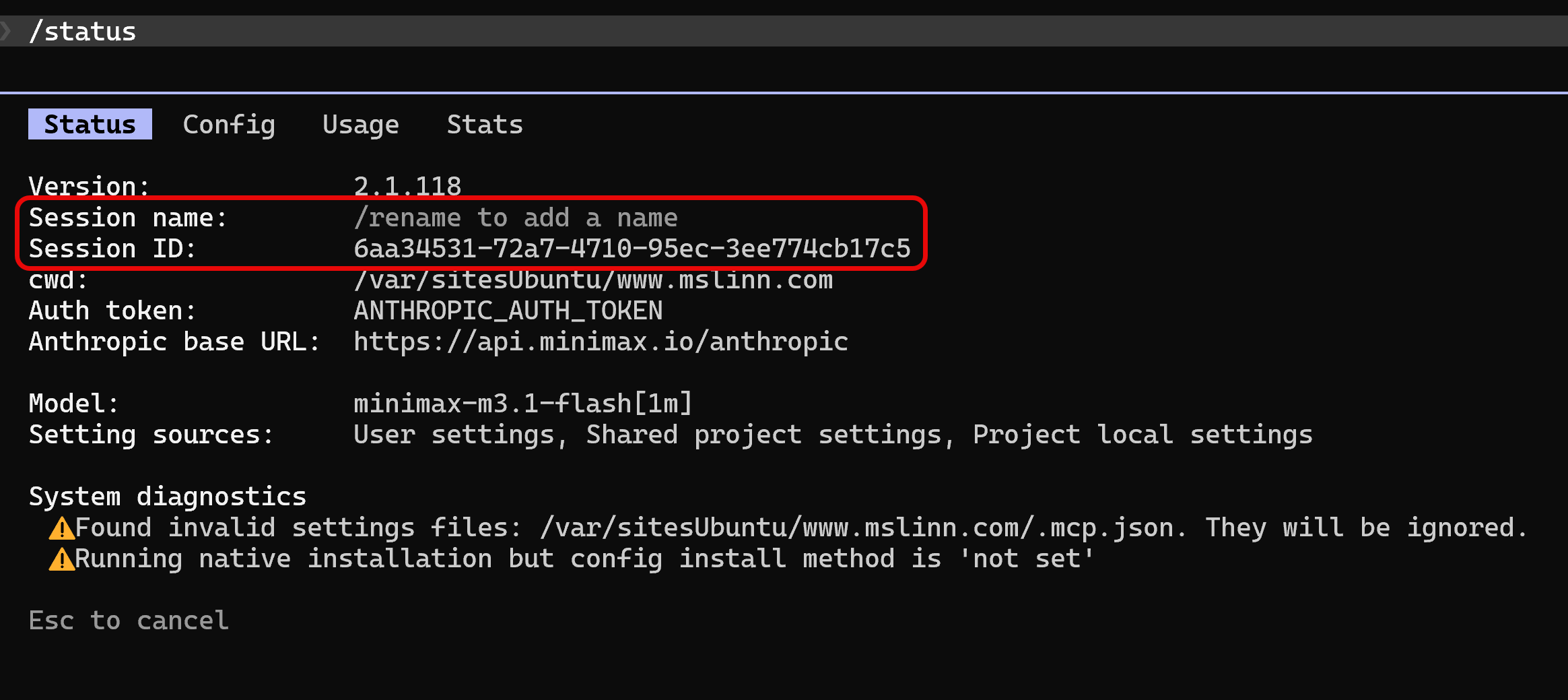
Somehow copy the session ID to the other computer. -
Finish your turn on Computer A and exit the chat session
(Press CTRL+C twice or type
exit). - Wait a few seconds for your cloud app to sync the directory.
-
On Computer B, let the cloud sync the session, then run:
claude --resume 6aa34531-72a7-4710-95ec-3ee774cb17c5
Named Chat Sessions
Alternatively, you can name the current session and refer to it by name instead of session ID. From your current chat session, type:
> /rename big_booboo
Once you have given a session a name, you no longer have to deal with UUIDs. Invoke it like this:
$ claude --resume big_booboo
From a chat window you can reactivate a chat session called
big_booboo like this:
> /resume big_booboo
Where Sessions Live
Sessions live in the default Claude configuration directory unless the
CLAUDE_CONFIG_DIR variable has a value. For this article, I set
CLAUDE_CONFIG_DIR to ~/.minimax.
$ export CLAUDE_CONFIG_DIR=~/.minimax
If you write a script, that script can define the environment variable just
within the script, so nothing else is disturbed. You can also provide a
default value, with the :- operator:
$ unset CLAUDE_CONFIG_DIR
$ echo ${CLAUDE_CONFIG_DIR:-~/.claude}/home/mslinn/.claude
$ CLAUDE_CONFIG_DIR=~/.minimax
$ echo ${CLAUDE_CONFIG_DIR:-~/.claude} /home/mslinn/.minimax
A session transcript is a JSONL file, one JSON object per line, at this path:
${CLAUDE_CONFIG_DIR:-~/.claude}/projects/<slugified-working-directory>/<session-id>.jsonl
Current Session ID
The session id is used to name the file containing session information. After
you type a command into that session, you can discover the session file
because it will be the most recently modified file in the entire
${CLAUDE_CONFIG_DIR:-~/.claude}/projects
directory tree
with a jsonl filetype:
The newest function below displays the most recent
jsonl file in the projects directory within the LLM
configuration directory:
$ function newest {
  find ${CLAUDE_CONFIG_DIR:-~/.claude}/projects \
      -type f \
      -name '*.jsonl' \
      -printf '%T@ %p\n' | \
    sort -nr | \
    head -n1 | \
    cut -d' ' -f2-
}

$ newest_file=$( newest ) # run it and save the value

$ echo "$newest_file"
/home/mslinn/.minimax/projects/-mnt-f-work-ruby-my-gems-gui-harness/b71e77ee-9efc-4697-a4a0-1ee086bcb88f.jsonl
The session iDs encoded into the name of the jsonl file are
highlighted above. For the above file, the session id is
b71e77ee-9efc-4697-a4a0-1ee086bcb88f.
Copy Chat Session to the Other Machine
Let's say that we are working on a project in a directory pointed to by the
project environment variable:
$ project="$(pwd)"

$ echo "$project"
/mnt/f/work/ruby/my_gems/gui_harness
In the chat session, we give it the name big_booboo and exit the chat:
> /rename big_booboo

> exit
The following code generates a slugified version of the project directory path.
$ function slugify {
  echo "$1" | sed 's/[^a-zA-Z0-9]/-/g'
}

$ session_id=$(basename "$newest_file" .jsonl)

$ project_slugified=$( slugify "$project" )
The destination directory has to exist before you copy anything into it,
and it has to be the directory that the other machine’s
minimax alias names. Those are not always the same. On my
computer called camille, the alias points at
~/.minimax_public, while on computer bear it
points at ~/.minimax.
$ ssh bear "mkdir -p ~/.minimax/projects/$project_slugified"

$ scp "$newest_file" "bear:~/.minimax/projects/$project_slugified/${session_id}.jsonl"
Verify that it arrived:
$ ssh bear "ls -la ~/.minimax/projects/$project_slugified/"
I use a Host entry in ~/.ssh/config for each
machine, so that key authentication is used for ssh bear works,
and scp to bear::
Host bear
  user mslinn
  identityFile ~/.ssh/id_rsa
Resuming a Session On The Other Machine
Log in to the other machine, change to the same working directory, and resume with the session ID:
$ ssh bear

$ cd /directory/on/other/computer

$ minimax --resume b71e77ee-9efc-4697-a4a0-1ee086bcb88f

$ minimax --resume big_booboo  # Named session
The working directory matters. Claude Code derives the transcript directory from the current directory, so if you resume from a different directory, it will not find the file you copied.