Published 2025-11-16.
Last modified 2026-10-31.
Time to read: 13 minutes.
llm collection.
- Large Language Models with Ollama
- Using Ollama and Gemma-4 with Visual Studio Code
- Claude Code Is Magnificent, But Anthropic is Rapacious
- MiniMax-M2/3 Review
- Running MiniMax M3.1 Flash on Claude Code CLI
- LLM Societies
- AI Planning vs. Waterfall Project Management
- Early Draft: Multi-LLM Agent Pipelines
- Gemini vs. Sonnet 3.5 and 4.6 for Meticulous Work
- Gemini Code Assist
- Antigravity
- Best Local LLMs for Coding
- Aider: A Lean and Focused Agentic Programming Assistant
- Mini-Agent Review
- Running GLM on the Ollama app
- Codex: Agentic Programming with ChatGPT in Visual Studio Code
- MiniMax Web Search with ddgr
This article follows on from MiniMax-M2/3 Review.
Mini-Agent is a command-line agent that acts as the user interface for the cloud-based MiniMax-M2.x. Mini-Agent can perform many common tasks for programming, including running scripts and editing files.
I prefer to use Claude Code instead of Mini-Agent. See Running MiniMax M3.1 Flash on Claude Code CLI to learn more.
The Visual Studio Code Harness and Ollama also work well with MiniMax-M3.1 Flash. See Using Ollama and Gemma-4 with Visual Studio Code
This article reviews Mini-Agent, which is intended to work with MiniMax (see MiniMax-M2/3 Review), and makes comparisons to Claude CLI, with advice applicable to working with any agentic programming assistant. For convenience, I refer to MiniMax with Mini-Agent simply as Mini-Agent in this article.
See Fixing Bugs With LLM Assistance to learn how I used Mini-Agent to debug an issue with my Jekyll Plugin Support framework.
Installation
The following incantation results in a permanent installation of v0.1.0, originally released on 2025-12-06 but continuously updated.
$ uv tool install git+https://github.com/MiniMax-AI/Mini-Agent.git
Resolved 56 packages in 29ms
Prepared 5 packages in 143ms
Installed 56 packages in 46ms
+ agent-client-protocol==0.7.0
+ annotated-types==0.7.0
+ anthropic==0.75.0
+ anyio==4.12.0
+ argcomplete==3.6.3
+ attrs==25.4.0
+ certifi==2025.11.12
+ cffi==2.0.0
+ charset-normalizer==3.4.4
+ click==8.3.1
+ cryptography==46.0.3
+ distro==1.9.0
+ docstring-parser==0.17.0
+ h11==0.16.0
+ httpcore==1.0.9
+ httpx==0.28.1
+ httpx-sse==0.4.3
+ idna==3.11
+ iniconfig==2.3.0
+ jiter==0.12.0
+ jsonschema==4.25.1
+ jsonschema-specifications==2025.9.1
+ mcp==1.23.1
+ mini-agent==0.1.0 (from git+https://github.com/MiniMax-AI/Mini-Agent.git@69cc459075d054814d04949c700350fcb49c8406)
+ openai==2.9.0
+ packaging==25.0
+ pip==25.3
+ pipx==1.8.0
+ platformdirs==4.5.1
+ pluggy==1.6.0
+ prompt-toolkit==3.0.52
+ pycparser==2.23
+ pydantic==2.12.5
+ pydantic-core==2.41.5
+ pydantic-settings==2.12.0
+ pygments==2.19.2
+ pyjwt==2.10.1
+ pytest==9.0.1
+ python-dotenv==1.2.1
+ python-multipart==0.0.20
+ pyyaml==6.0.3
+ referencing==0.37.0
+ regex==2025.11.3
+ requests==2.32.5
+ rpds-py==0.30.0
+ sniffio==1.3.1
+ sse-starlette==3.0.3
+ starlette==0.50.0
+ tiktoken==0.12.0
+ tqdm==4.67.1
+ typing-extensions==4.15.0
+ typing-inspection==0.4.2
+ urllib3==2.6.0
+ userpath==1.9.2
+ uvicorn==0.38.0
+ wcwidth==0.2.14
Installed 2 executables: mini-agent, mini-agent-acp

$ which mini-agent
/home/mslinn/.local/bin/mini-agent
The above gives you a new command: mini-agent.
To later update this command, just type:
$ uv tool install --force git+https://github.com/MiniMax-AI/Mini-Agent.git
Resolved 56 packages in 158ms
    Updated https://github.com/MiniMax-AI/Mini-Agent.git (b2f800093cb9d0ec10bbdbc5da92d0642ee7761e)
      Built mini-agent @ git+https://github.com/MiniMax-AI/Mini-Agent.git@b2f800093cb9d0ec10bbdbc5da92d0642ee7761e
Prepared 1 package in 1.16s
Uninstalled 1 package in 15ms
Installed 1 package in 8ms
 - mini-agent==0.1.0 (from git+https://github.com/MiniMax-AI/Mini-Agent.git@69cc459075d054814d04949c700350fcb49c8406)
 + mini-agent==0.1.0 (from git+https://github.com/MiniMax-AI/Mini-Agent.git@b2f800093cb9d0ec10bbdbc5da92d0642ee7761e)
Installed 2 executables: mini-agent, mini-agent-acp
The above highlights the output that is displayed when the software updates. Notice that the version number is 0.1.0 for both versions. This is unprofessional. Compare the above output with the following, which shows the output when there is no software update:
$ uv tool install --force git+https://github.com/MiniMax-AI/Mini-Agent.git
Resolved 56 packages in 15ms
Uninstalled 1 package in 3ms
Installed 1 package in 10ms
 ~ mini-agent==0.1.0 (from git+https://github.com/MiniMax-AI/Mini-Agent.git@b2f800093cb9d0ec10bbdbc5da92d0642ee7761e)
Installed 2 executables: mini-agent, mini-agent-acp
If you just want to try out Mini-Agent, use uvx instead:
$ uvx git+https://github.com/MiniMax-AI/Mini-Agent.git
The above immediately runs the latest version of the program but does not give you
the mini-agent command.
If you permanently installed it, start the agent like this:
$ mini-agent
✅ LLM retry mechanism enabled (max 3 retries)
✅ Loaded Bash tool
✅ Loaded Bash Output tool
✅ Loaded Bash Kill tool
Loading Claude Skills...
✅ Discovered 15 Claude Skills
✅ Loaded Skill tool (get_skill)
Loading MCP tools...
✓ Connected to MCP server 'mcp-server-go' - loaded 7 tools
  - fetch_webpage: Fetch a web page and convert it to markdown format...
  - find_files: Search for files using pattern matching exact, case-insensi...
  - read_file: Read file contents with optional limits, offset, and line nu...
  - server_info: Get server information...
  - test_tool: A simple test tool that returns a message...
  - web_search: Perform a web search using Bing and return structured JSON r...
  - write_file: Write content to files with options for creating, overwritin...

Total MCP tools loaded: 7
✅ Loaded 7 MCP tools (from: /home/mslinn/.mini-agent/config/mcp.json)

✅ Loaded file operation tools (workspace: /var/sitesUbuntu/www.mslinn.com)
✅ Loaded session note tool
✅ Loaded system prompt (from: /home/mslinn/.mini-agent/config/system_prompt.md)
✅ Injected 15 skills metadata into system prompt

╔══════════════════════════════════════════════════════════╗
║      🤖 Mini Agent - Multi-turn Interactive Session      ║
╚══════════════════════════════════════════════════════════╝

┌──────────────────────────────────────────────────────────┐
│                       Session Info                       │
├──────────────────────────────────────────────────────────┤
│ Model: MiniMax-M2                                        │
│ Workspace: /var/sitesUbuntu/www.mslinn.com               │
│ Message History: 1 messages                              │
│ Available Tools: 13 tools                                │
└──────────────────────────────────────────────────────────┘

Type /help for help, /exit to quit
I had previously installed tools, so my tool count might be different from yours.
You › /help
Available Commands:
  /help      - Show this help message
  /clear     - Clear session history (keep system prompt)
  /history   - Show current session message count
  /stats     - Show session statistics
  /exit      - Exit program (also: exit, quit, q)

Keyboard Shortcuts:
  Ctrl+U     - Clear current input line
  Ctrl+L     - Clear screen
  Ctrl+J     - Insert newline (also Ctrl+Enter)
  Tab        - Auto-complete commands
  ↑/↓        - Browse command history
  →          - Accept auto-suggestion

Usage:
  - Enter your task directly, Agent will help you complete it
  - Agent remembers all conversation content in this session
  - Use /clear to start a new session
  - Press Enter to submit your message
  - Use Ctrl+J to insert line breaks within your message
Visual Studio Code Terminal did not treat CTRL+J or CTRL+Enter as a newline, but Microsoft Terminal did. Sigh.
Mini-Agent Package
This section provides information about the packaging of the
mini-agent command discussed above.
The miniagent subdirectory of the
GitHub project
contains the package that should be installed for agentic programming with MiniMax-M2.
The initial commit for this Git repository was on Nov 6, 2025, and contained 641 files.
It was clearly based on unacknowledged earlier work.
On 2025-12-06, it had 784 stars and 103 forks. This is a popular package.
Normal release practices are not followed (there is no versioning, tags, change log, etc.). Mini-Agent writes my changelogs already, and CI/CD scripts for releases; why cannot the Mini-Agent developers do the same? This procedural failing is unprofessional.
The most popular fork, with 2 stars, is by
0xSero.
This looks like the work of one of the developers.
Do Not Confuse Mini-Agent from MiniMax With MiniAgent From PyPi
There is a package on PyPi called Mini-Agent that is for entirely different purposes.
Installing Anthropic Compatibility
It is unclear how much Anthropic compatibility is provided without configuration.
The instructions are frustratingly incomplete, and the implementation was
seemingly thrown together without much thought. For example, I presume that
the YOUR_API_KEY is the user’s MiniMax-M2 key. These
environment variables are meant for use in MCP files and other config files,
not set at the Bash shell. Otherwise, setting ANTHROPIC_API_KEY
to the MiniMax-M2 user key would mean that Claude users such as myself would
have to figure out a way to set this key to the value provided by Anthropic
when running claude, and to the MiniMax-M2 key when running
mini-agent.
export ANTHROPIC_BASE_URL=https://api.minimax.io/anthropic
export ANTHROPIC_API_KEY=${YOUR_API_KEY}
So I did nothing, and that has worked out fine so far.
Configuration
Make a quick initial setup by typing:
$ curl -fsSL \
  https://raw.githubusercontent.com/MiniMax-AI/Mini-Agent/main/scripts/setup-config.sh | bash
╔════════════════════════════════════════════════╗
║   Mini Agent Configuration Setup              ║
╚════════════════════════════════════════════════╝

[1/2] Creating configuration directory...
   ✓ Created: /home/mslinn/.mini-agent/config
[2/2] Downloading configuration files...
   ✓ Downloaded: config.yaml
   ✓ Downloaded: mcp.json
   ✓ Downloaded: system_prompt.md
   ✓ Configuration files ready

╔════════════════════════════════════════════════╗
║   Setup Complete! ✨                          ║
╚════════════════════════════════════════════════╝

Configuration files location:
  /home/mslinn/.mini-agent/config

Files:
  📄 config.yaml
  📄 mcp.json
  📄 system_prompt.md
Edit ~/.mini-agent/config/config.yaml and paste your MiniMax
API key into it.
config.yaml
You can change the number of allowable steps by modifying the value of
max_steps. I usually set the threshold values from 200 to 5000;
larger values generally give a smoother ride, but you risk having to use
CTRL+C more frequently. I call this the nuclear option.
Scroll the following code to see how that is done.
# Mini Agent Configuration Example
#
# Configuration File Locations (in priority order):
# 1) mini_agent/config/config.yaml - Development mode (current directory)
# 2) ~/.mini-agent/config/config.yaml - User configuration file
# 3) <package>/mini_agent/config/config.yaml - Package installation directory
#
# To use this config:
# - Copy this file to one of the above locations as config.yaml
# - Fill in your API key and customize settings as needed
# - All config files (config.yaml, mcp.json, system_prompt.md) are in the same directory

# ===== LLM Configuration =====
# MiniMax API Configuration
# MiniMax provides both global and China platforms:
# - Global: https://platform.minimax.io -> api_base: https://api.minimax.io/anthropic
# - China: https://platform.minimaxi.com -> api_base: https://api.minimaxi.com/anthropic
# Please choose based on your network environment and get API key from corresponding platform
api_key: "secret"
api_base: "https://api.minimax.io/anthropic"  # Global users
# api_base: "https://api.minimaxi.com/anthropic"  # China users
model: "MiniMax-M2"

# ===== Retry Configuration =====
retry:
  enabled: true           # Enable retry mechanism
  max_retries: 3          # Maximum number of retries
  initial_delay: 1.0      # Initial delay time (seconds)
  max_delay: 60.0         # Maximum delay time (seconds)
  exponential_base: 2.0   # Exponential backoff base (delay = initial_delay * base^attempt)

# ===== Agent Configuration =====
max_steps: 5000  # Maximum execution steps
workspace_dir: "./workspace"  # Working directory
system_prompt_path: "system_prompt.md"  # System prompt file (same config directory)

# ===== Tools Configuration =====
tools:
  # Basic tool switches
  enable_file_tools: true  # File read/write/edit tools (ReadTool, WriteTool, EditTool)
  enable_bash: true        # Bash command execution tool
  enable_note: true        # Session note tool (SessionNoteTool)

  # Claude Skills
  enable_skills: true      # Enable Skills
  skills_dir: "./skills"   # Skills directory path

  # MCP Tools
  enable_mcp: true         # Enable MCP tools
  mcp_config_path: "mcp.json"  # MCP configuration file (same config directory)
                           # Note: API Keys for MCP tools are configured in mcp.json
See LLM System Prompts for more information.
Copying Setup From Another Computer
To copy the setup from a computer called bear to this one, then
install and run Mini-Agent, I typed:
$ mkdir -p ~/.mini-agent/config/

$ scp bear:~/.mini-agent/config/config.yaml ~/.mini-agent/config/config.yaml

$ uv tool install git+https://github.com/MiniMax-AI/Mini-Agent.git

$ mini-agent
Skills
Are you able to use claude skills?
I can use specialized skills to provide expert guidance for specific tasks. Here's what's available:
artifacts-builder- Create elaborate HTML artifacts using React, Tailwind CSS, shadcn/uiskill-creator- Guide for creating new skills that extend capabilitiesslack-gif-creator- Create animated GIFs optimized for Slackwebapp-testing- Test and debug local web applications using Playwrighttheme-factory- Apply themes to artifacts (slides, docs, reports, landing pages)internal-comms- Write internal communications using company formatsbrand-guidelines- Apply Anthropic's official brand colors and typographyalgorithmic-art- Create algorithmic art using p5.js with seeded randomnesscanvas-design- Create visual art in .png and .pdf documentsmcp-builder- Create high-quality MCP servers for external API integrationpptx- Comprehensive presentation creation and editingdocx- Professional document creation and editingxlsx- Spreadsheet creation, analysis, and data visualizationpdf- PDF manipulation, extraction, and form processing
How Skills Work:
- Skills provide specialized workflows and domain expertise
- They include bundled resources like scripts, references, and assets
- I can load the full content of any skill to get detailed guidance
- Skills are designed for progressive disclosure - metadata first, then detailed content as needed
Provided Skills
I decided to try the slack-gif-creator skill:
Create an animated gif called `test.gif` that shows something broken
🤖 Assistant: I’ll create an animated GIF showing something broken. Let me create a Python script to generate an animated GIF with a cracked smartphone screen effect.
🤖 Assistant:
Perfect! I’ve successfully created test.gif - an animated GIF showing a broken
smartphone screen with spreading cracks.
The animation features:
- A smartphone with a realistic design
- Cracks that progressively spread across the screen over 20 frames
- An impact point at the center where the cracks originate
- Additional crack branches and radiating lines
- Screen debris and scratches that appear as the damage worsens
- 2 frames per second for a slow, dramatic effect
The file is saved as test.gif (31.8 KB) and shows a compelling visual
representation of something broken - specifically a smartphone screen that
appears to be damaged and continuing to crack.
The slack-gif-creator skill created a .venv directory in the current directory without asking permission or providing notification.
It then wrote a Python script into the current directory without permission or notification (create_broken_gif.py),
then it created test.gif, also in the current directory.
Moral: Do not use the provided skills. They have been thrown together quickly and have not undergone user testing.
Custom Skills
I edited ~/ and changed the value of skills_dir to
/home/ so all skills are defined in the same
place. Although Claude correctly expands paths like
~/.claude/ to the value of
$HOME/, Mini-Agent does not.
Mini-Agent does not use the custom skills it finds until you prod it to do so. In the standard file of startup instructions that I use, this line causes custom skills to be invoked:
Notice the skills defined in `$HOME/.claude/skills`.
Guided Skill Creation
i want to create a skill that uses grep to recursively search several projects for a regex pattern and ignores .git/ subdirectories. the project directories are pointed to by the following environment variables: $agent_instructions, $sc_router, $sc_app, $dl, $jekyll_control, and $git_update
Perfect! I’ve successfully created your multi-project grep search skill. Here’s what was built:
## Skill Created: multi-project-grep
Package Location: multi-project-grep.zip (6.7 KB)
### What’s Included:
SKILL.md- Comprehensive documentation with:- When to use the skill
- Environment variable requirements
- Usage examples and parameters
- Error handling guidance
scripts/multi_grep.sh- Executable bash script that:- Searches across your 6 environment variable directories
- Excludes
.git/andnode_modules/automatically - Validates directory existence before searching
- Provides structured output with clear project separators
- Includes comprehensive error handling
### How to Use:
Basic search:
./scripts/multi_grep.sh "TODO"
With grep options:
  ./scripts/multi_grep.sh "function_name" -n
  ./scripts/multi_grep.sh "import.*sys" -A 2 -B 2
### Verified Functionality:
✅ Successfully tested with your environment variables
✅ Searches all 6 project directories
✅ Excludes .git/ subdirectories
✅ Handles missing directories gracefully
✅ Provides clear error messages when no pattern specified
✅ Returns structured results with project counts
The skill is now ready to use! The multi-project-grep.zip file contains
everything needed to install and use this specialized grep search capability
across your multi-project codebase.
How to install?
To install the multi-project grep skill, follow these steps:
## Installation Instructions
### Step 1: Extract the Skill Package
unzip multi-project-grep.zip
This creates a multi-project-grep/ directory with the skill contents.
### Step 2: Navigate to the Skill Directory
cd multi-project-grep
### Step 3: Verify the Script is Executable
ls -la scripts/multi_grep.sh
The script should have execute permissions (-rwxr-xr-x). If not, run:
chmod +x scripts/multi_grep.sh
### Step 4: Set Up Environment Variables The skill requires these environment variables to be set to your project directories:
  # Example - replace with your actual paths
  export agent_instructions="/path/to/agent_instructions"
  export sc_router="/path/to/sc_router"
  export sc_app="/path/to/sc_app"
  export dl="/path/to/dl"
  export jekyll_control="/path/to/jekyll_control"
  export git_update="/path/to/git_update"
To make these permanent, add them to your shell profile:
  # Add to ~/.bashrc, ~/.zshrc, or ~/.profile
  echo 'export agent_instructions="/your/path/here"' >> ~/.bashrc
  echo 'export sc_router="/your/path/here"' >> ~/.bashrc
  # ... repeat for other variables
### Step 5: Test the Installation
./scripts/multi_grep.sh "TODO"
You should see search results from your project directories.
## Alternative Installation Methods
### Method A: System-Wide Installation
For system-wide access, copy to /usr/local/bin or similar:
  sudo cp scripts/multi_grep.sh /usr/local/bin/multi-grep
  chmod +x /usr/local/bin/multi-grep
Then use it directly:
multi-grep "pattern"
### Method B: Project-Specific Installation If you want this skill as part of an existing project:
  cp -r multi-project-grep/ /path/to/your/project/tools/
  cd /path/to/your/project/tools/multi-project-grep
  ./scripts/multi_grep.sh "search_pattern"
## Quick Verification Test with a simple pattern to verify everything works:
./scripts/multi_grep.sh "echo"
This should search for “echo” across all your configured project directories and show which ones contain the term.
The skill is now installed and ready to use!
MCP Tools
Mini-Agent is provided with the following MCP tools, and more can be added:
-
bash- for running commands -
read_file,write_file,edit_file- for file operations -
get_skill- for specialized skill guidance -
record_note- for session notes
When Mini-Agent needs to fetch something from GitHub or elsewhere in the
interwebs, it invokes a bash command like wget or
curl. See MCP Tools for an
explanation of how to add knowledge management and web search capabilities.
Command Line Syntax
$ mini-agent # Use current directory

$ mini-agent --workspace /path/to/project # Specify workspace

$ mini-agent --help # Show help
Mini-Agent gets confused whenever it encounters the word “workspace’ in an instruction, and mixes that directory up with its command-line option. That caused quite a headache for one of my projects until I realized the source of the odd behavior.
Using The Mini-Agent Command Line
$ cd $work/myproject

$ mini-agent
✅ LLM retry mechanism enabled (max 3 retries)
✅ Loaded Bash tool
✅ Loaded Bash Output tool
✅ Loaded Bash Kill tool
Loading Claude Skills...
✅ Discovered 15 Claude Skills
✅ Loaded Skill tool (get_skill)
Loading MCP tools...
Skipping disabled server: minimax_search
Skipping disabled server: memory

Total MCP tools loaded: 0
⚠️  No available MCP tools found

✅ Loaded file operation tools (workspace: /mnt/f/work/myproject)
✅ Loaded session note tool
✅ Loaded system prompt (from: /home/mslinn/.mini-agent/config/system_prompt.md)
✅ Injected 15 skills metadata into system prompt

╔══════════════════════════════════════════════════════════╗
║  🤖 Mini Agent - Multi-turn Interactive Session         ║
╚══════════════════════════════════════════════════════════╝

┌──────────────────────────────────────────────────────────┐
│ Session Info                                             │
├──────────────────────────────────────────────────────────┤
│ Model: MiniMax-M2                                        │
│ Workspace: /mnt/f/work/miniagent                         │
│ Message History: 1 messages                              │
│ Available Tools: 8 tools                                 │
└──────────────────────────────────────────────────────────┘

Type /help for help, /exit to quit
This is the mini-agent CLI help message:
You › /help
Available Commands:
  /help      - Show this help message
  /clear     - Clear session history (keep system prompt)
  /history   - Show current session message count
  /stats     - Show session statistics
  /exit      - Exit program (also: exit, quit, q)

Keyboard Shortcuts:
  Ctrl+U     - Clear current input line
  Ctrl+L     - Clear screen
  Ctrl+J     - Insert newline (also Ctrl+Enter)
  Tab        - Auto-complete commands
  ↑/↓        - Browse command history
  →          - Accept auto-suggestion

Usage:
  - Enter your task directly, Agent will help you complete it
  - Agent remembers all conversation content in this session
  - Use /clear to start a new session
  - Press Enter to submit your message
  - Use Ctrl+J to insert line breaks within your message
Vanishing Output
Text showing “thinking” usually scrolls by quickly. This is unfortunate, because you can tell when the little bugger is going feral on you from monitoring its thinking. Most of the dialog is lost. Worse, when a session ends, whatever was on the terminal vanishes and cannot be redisplayed. This is a horrible user experience. The next section shows you how to solve that.
In this regard, Mini-Agent comes off as a midterm project, while Claude Code CLI is a highly polished product.
Recording a Session
Mini-Agent must be permanently installed for this to work.
See Recording Chat Transcripts to obtain the
record script and to learn various ways of viewing the
transcript.
The following shows how to use record to launch Mini-Agent.
$ record -c mini-agent
Script started, output log file is '2025-12-12_20-06-39_chat.log'.
✅ LLM retry mechanism enabled (max 3 retries)
✅ Loaded Bash tool
✅ Loaded Bash Output tool
✅ Loaded Bash Kill tool
Loading Claude Skills...
✅ Discovered 1 Claude Skills
✅ Loaded Skill tool (get_skill)
Loading MCP tools...
✅ Loaded 11 MCP tools (from: /home/mslinn/.mini-agent/config/mcp.json)
✅ Loaded file operation tools (workspace: /home/mslinn)
✅ Loaded session note tool
✅ Loaded system prompt (from: /home/mslinn/.mini-agent/config/system_prompt.md)
✅ Injected 1 skills metadata into system prompt

╔══════════════════════════════════════════════════════════╗
║ 🤖 Mini Agent - Multi-turn Interactive Session           ║
╚══════════════════════════════════════════════════════════╝

┌──────────────────────────────────────────────────────────┐
│ Session Info                                             │
├──────────────────────────────────────────────────────────┤
│ Model: MiniMax-M2                                        │
│ Workspace: /home/mslinn                                  │
│ Message History: 1 messages                              │
│ Available Tools: 19 tools                                │
└──────────────────────────────────────────────────────────┘

Type /help for help, /exit to quit

You › /exit
Script done.
Recording finished. Log saved to /home/mslinn/2025-12-12_20-06-39_chat.log
Clearing User Input
Mini-Agent supports keyboard shortcuts for clearing user input. These include:
To delete the entire current line (before the cursor):
- Windows/Linux: CTRL+U
- Mac: Cmd+A (move to beginning of line), followed by Cmd+K (delete to end of line), or use shell-specific bindings.
100 Steps
Debugging one particular problem, I could see MiniMax flail about for 35-40 steps before it got in the zone and knew what was where and how to interact. Then it would encounter something it did not understand and attempt to apply "reasoning." It never searched for information on the interwebs unless I told it to do so when I could get a word in; Mini-Agent does not listen or respond to you most of the time. It spent lots of time and energy reinventing wheels.
Then the 100-step limit would be reached, and it would lose all the context. Another, similar, 35-40 steps were spent getting back in the zone. It might or might not understand the changes accumulated by the last session. An additional 20 steps would be spent figuring that out. That corresponds to a 50% overhead 'getting in the zone' before being able to continue on.
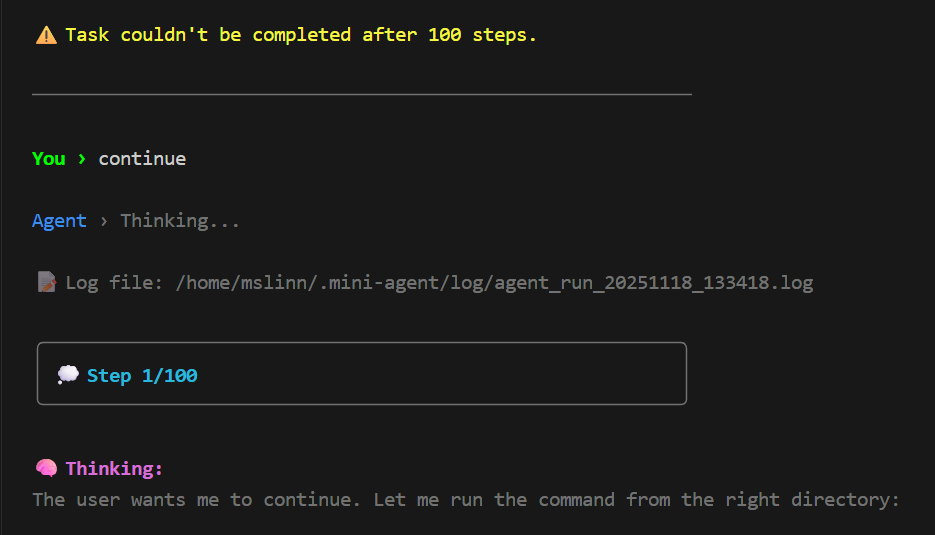
Some problems require a dozen attempts to fix them.
This is wasteful of a huge amount of resources. The elapsed time to get back in the zone for the total of all the subsequent attempts takes many hours or days. Whatever power plant is providing the electricity to run MiniMax is generating a huge amount of energy for this sinful procedural inefficiency. This is an implementation issue and multiplies the inherent inefficiency of LLMs in general. These high, cascading expenses that amplify each other are most regrettably wasteful. I hope this inefficiency is addressed very soon.
So after half an hour is spent waiting for MiniMax-M2 to get in the zone, you can see that it is getting stuck in something idiotic; your only options are to nuke the session or wait to see if it will eventually move forward before the 100-step limit is encountered. You can increase the step limit.
Claude quietly makes an estimate of the work it is about to perform and compares the expected expenditure against available session credits. Just before it runs out, the user is prompted with 3 choices.
Unlike Claude, MiniMax never runs out of session credits.
Gemini Told Me This
You cannot directly increase the hardcoded maximum context window size of a specific MiniMax model, as this limit is defined by the underlying model architecture (e.g., MiniMax M2 has a 204K token limit, M1 has a 1M token limit). Instead, you can use specific techniques and agentic workflows provided by the MiniMax platform to manage and extend the effective context during long or complex tasks. Techniques to Manage and Extend Context
For models like MiniMax M2, the key method is to enable reasoning_split=True when using the OpenAI-compatible API, or by natively including <think>…</think> blocks in your messages when using the Anthropic-compatible API. This ensures the agent’s internal reasoning chain is explicitly passed back into the next prompt, maintaining state and improving performance across multiple turns.
The MiniMax Agent interface allows for creating “branch sessions” or new sessions. If an original conversation is nearing its token limit, you can start a new branch to continue the project in a fresh context, avoiding “lost in the middle” problems associated with overly long contexts.
The MiniMax agent uses internal methods like code output compression and optimized browser handling to manage token usage and keep the context lean.
For handling lots of information (like large documentation or a codebase), the agent uses RAG processes and “Model Context Protocol” (MCP) servers to retrieve relevant information as needed, rather than loading everything into the main context window at once. This emulates a form of long-term memory. Model Selection: If your work consistently requires a massive context window, ensure you are using a MiniMax model specifically designed for it, such as MiniMax-Text-01 (4 million tokens inference) or MiniMax-M1 (1 million tokens).
For practical implementation and configuration, refer to the MiniMax Agent GitHub documentation or the MiniMax Agent Changelog.
Serious Bugs
🔧 Tool Call: bash
Arguments:
{
"command": "timeout 5 /tmp/jc_new status -v \"$computers\" 2>&1"
}

✗ Error: Command timed out after 120 seconds
This problem is not specific to any one bash command, and it is a major source
of frustration. Mini-Agent constantly generates bash commands so
it can gather information, but it NEVER looks at returned error messages.
Instead, each syntax error causes Mini-Agent to undergo a 120-second timeout,
which cannot be changed. Worse, Mini-Agent ALWAYS concludes that the bash
command it was trying to run is defective. So it introduces lots of debugging
on the supposedly defective command that goes nowhere because, inevitably,
yet another command line that Mini-Agent generated had a syntax error.
I have seen Mini-Agent attempt to use shorter timeouts, as shown above, but that parameter is always ignored. This is one very sick puppy.
Chaos ensues. A death spiral. Over and over and over and over... Consuming huge amounts of electricity as if there were no consequences to such behavior.
Impressions Working with Mini-Agent
Superior File Handling
Claude CLI has an annoying problem of creating Git locks in the project being worked on and forgetting about them. Mini-Agent thankfully does not have this issue. In fact, Mini-Agent is relatively very forgiving in navigating potential file conflicts. Claude is awful in this regard.
User Interruptions
There is no way to interrupt or guide the Mini-Agent once it starts doing something. I requested the feature.
One CTRL+C at the wrong time terminates the chat. At other times, CTRL+C copies selected text. A better way to copy text from the terminal is to enable copy-on-select; this means that any time you change the text selection, the copy buffer will automatically be updated. This is much better than trying (and often failing) to use CTRL+C to copy text. Claude does not have this problem because it requires two quick CTRL+Cs to terminate a chat.
I was pleased to discover that I was able to change files in the same project that Mini-Agent was working in, so long as I did not modify a file that it was accessing. Claude gets seriously confused if you do this. In contrast, Mini-Agent works with the user much more effectively in this important regard.
I was pleased to discover that the Claude Code CLI could be used to work with MiniMax-M2 instead of Mini-Agent.
Lack of User Feedback
I miss the Claude TUI status line that I made. That gave me a clear idea of when the LLM was struggling.
Conclusion
Having spent considerable time interacting with the combination of Claude and MiniMax-M2, I am reluctant to go back to what I did before experimenting with this workflow. This has serious potential.
I recommend the combination of MiniMax-M2 and Claude as a team. They balance each other well. Your job becomes steering the vessel instead of shoveling coal. You could have a $20/mon USD Claude account for the thinking parts, and use MiniMax-M2 at $20/mon for an unlimited number of worker drones. This old programmer is doing the work of a small team with that combination, and the experience seems like a dream. This stuff was pure fantasy in the 1960s, and I was an avid reader. It is so great to experience this taking shape.
One of the first things that I did, with great success, was to tell Mini-Agent to fix a bug in a Jekyll plugin that I was working on. Read about that experience in Fixing Bugs With LLM Assistance. In this case I performed the analysis, and I told Mini-Agent exactly what to do. That was a time saver, but Claude would have been able to do the work much faster. MiniMax-M2 was too wild without careful conditioning to let it loose on the job alone.
- Large Language Models with Ollama
- Using Ollama and Gemma-4 with Visual Studio Code
- Claude Code Is Magnificent, But Anthropic is Rapacious
- MiniMax-M2/3 Review
- Running MiniMax M3.1 Flash on Claude Code CLI
- LLM Societies
- AI Planning vs. Waterfall Project Management
- Early Draft: Multi-LLM Agent Pipelines
- Gemini vs. Sonnet 3.5 and 4.6 for Meticulous Work
- Gemini Code Assist
- Antigravity
- Best Local LLMs for Coding
- Aider: A Lean and Focused Agentic Programming Assistant
- Mini-Agent Review
- Running GLM on the Ollama app
- Codex: Agentic Programming with ChatGPT in Visual Studio Code
- MiniMax Web Search with ddgr