
Published 2026-09-06.
Last modified 2026-09-09.
Time to read: 9 minutes.
av_studio collection.
This article discusses how to transfer photos from the Sony Creators’ App running on an Android device or an iOS device such as an iPad, to a Windows computer using a secure network bridge. Android is shown to be capable of mirroring the camera's images to Windows. A discussion of why iOS does not support this type of functionality is provided with partial workarounds.
Requirements and Testing
My requirement was to continuously collect photos on a Windows computer as they arrive on the mobile device from a compatible Sony camera as the user shoots photos via remote control using Sony Creator’s App. No cloud services were permitted. I tested with:
- Windows 11 Pro Version 10.0.26200 Build 26200
- Sony ZV-E1
- Samsung Galaxy Tab S8 Ultra (SM-X900) running Android v16 and One UI v8
- Apple iPad Air 13" (M2) running iPadOS v26.6.1
Overview
Syncthing is a free, open-source peer-to-peer file synchronization application that continuously and securely copies files between devices without relying on the cloud, and many configurations only use local networking.
Syncthing is available for multiple operating systems, including Windows, MacOS, and Android. iOS support is provided via community clients.
Syncthing automatically syncs all subfolders and files inside any folder you add to it. Syncthing handles renaming files and updating their metadata in an efficient manner. This means that renaming a file will not cause a retransmission of that file. Additionally, appending data to existing files should be handled efficiently as well.
Read the Syncthing documentation. The FAQ is also helpful.
SyncUp provides an open-source Syncthing client (SyncUp-Client) that runs as a native sync daemon. It is available for Android and iOS.
SyncUp-Client and Syncthing-Fork (Android only) both:
- Support robust, two-way synchronization regardless of whether the data resides on internal storage or external micro-SD cards.
- Display sync progress and peer status.
- Visually troubleshoot connection status.
- Provide local fallback and discovery when internet access is suspended.
- Pair the PC and the mobile device using unique cryptographic keys instead of insecure usernames or passwords.
In addition, Syncthing-Fork also can display recent file changes.
PC
SyncTrayzor provides an encrypted TLS connection to Windows when used with SyncUp-Client or Syncthing-Fork on a mobile device.
Port 22000 of the Windows PC firewall should be opened on the Public network profile to communicate with the mobile device. This is more secure than opening SMB Port 445.
Android
On Android, the Sony Creator’s App can save to internal storage or an SD card, and media files are accessible via the Google Files app or by accessing the media.
Unlike iOS, Android keeps daemons running in the background and can automatically restart them when the mobile device reboots.
Syncthing-Fork is better than SyncUp-Client for Android because:
- Syncthing-Fork provides a native Android GUI.
- Syncthing-Fork allows users to specify network restrictions (like Wi-Fi vs. mobile data) per individual folder. In contrast, SyncUp-Client only allows toggling global network rules for the entire app.
Sleeping Daemons
Modern Android operating systems will aggressively force daemons to sleep after a few minutes, killing the sync process mid-transfer. The Syncthing-Fork installation gives you an opportunity to enable the setting that allows long-running daemons.
iOS
iOS drops TCP connections when an app is backgrounded. This prevents photos from being transferred continuously while shooting. This article discusses a few workarounds that reduce the available screen area for Sony Creator’s App; however unlike iOS, Android allows the file transfer daemon to operate continuously in the background.
For iOS, photos captured and imported by the Sony Creators app are stored within the Sony Creators’ App sandbox cache. This means standard USB transfers between other devices and the Sony Creators App on the iPad cannot be used.
An encrypted TLS connection between the PC and iOS is established by using SyncTrayzor in concert with SyncUp-Client.
SyncTrayzor Panels
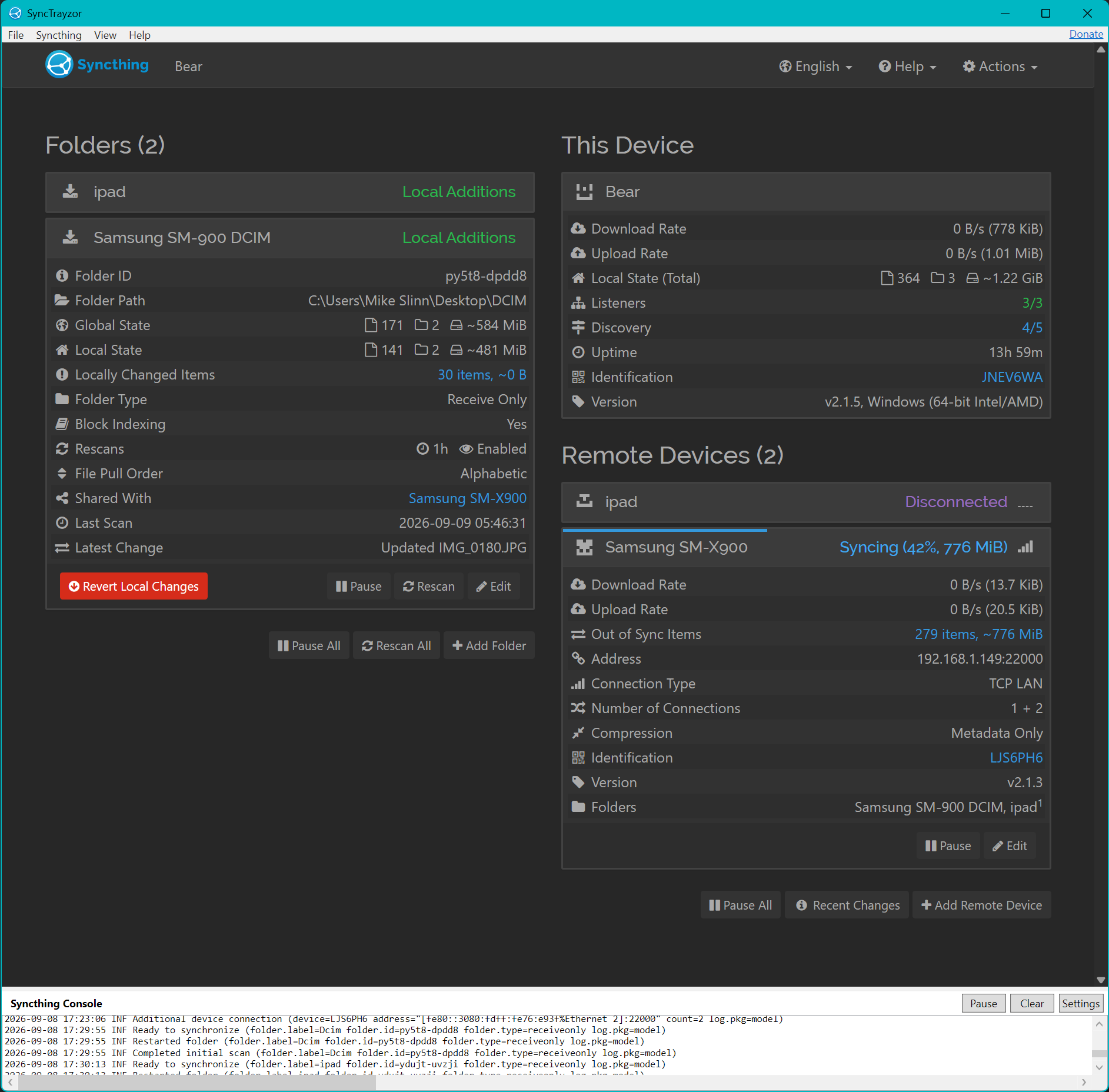
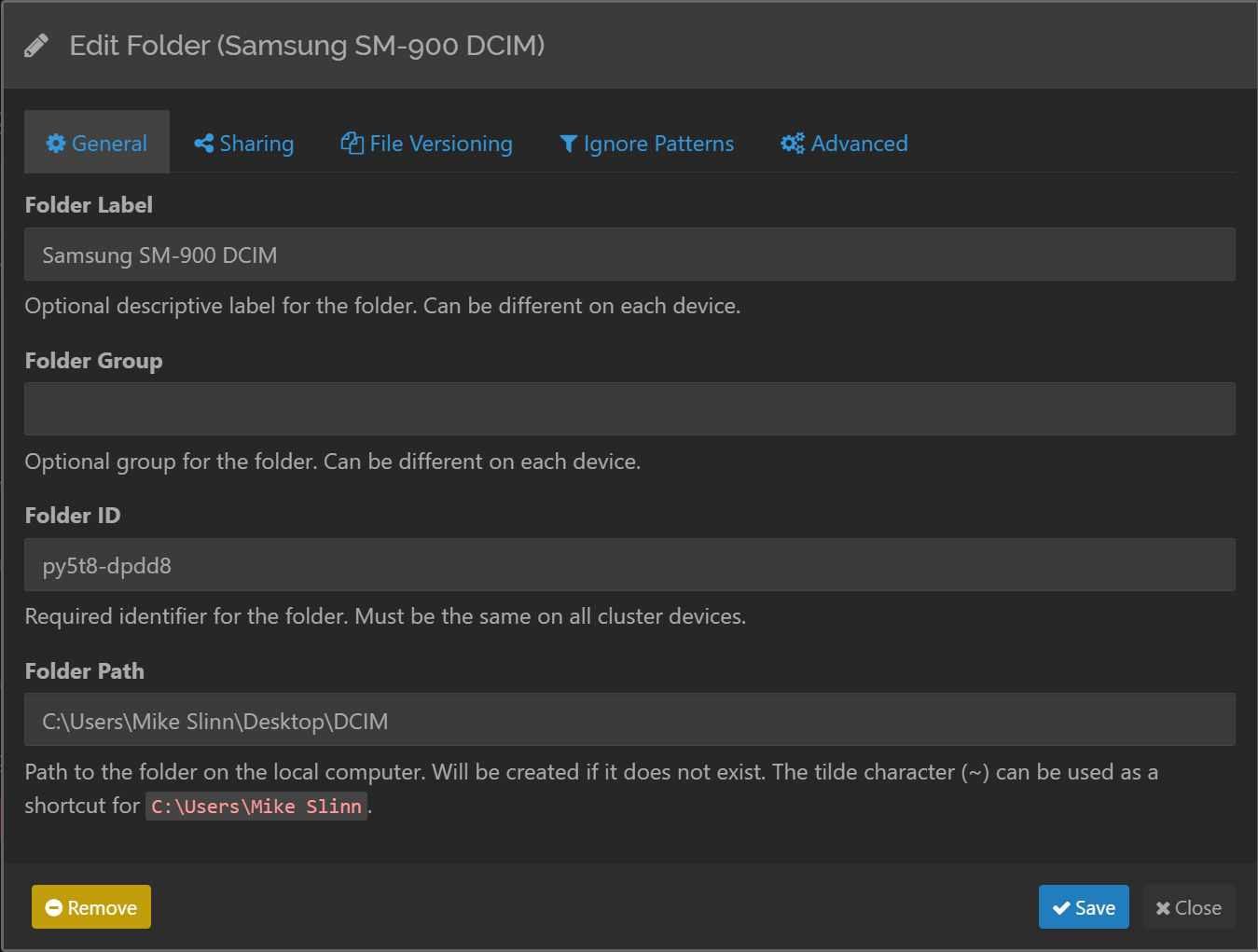
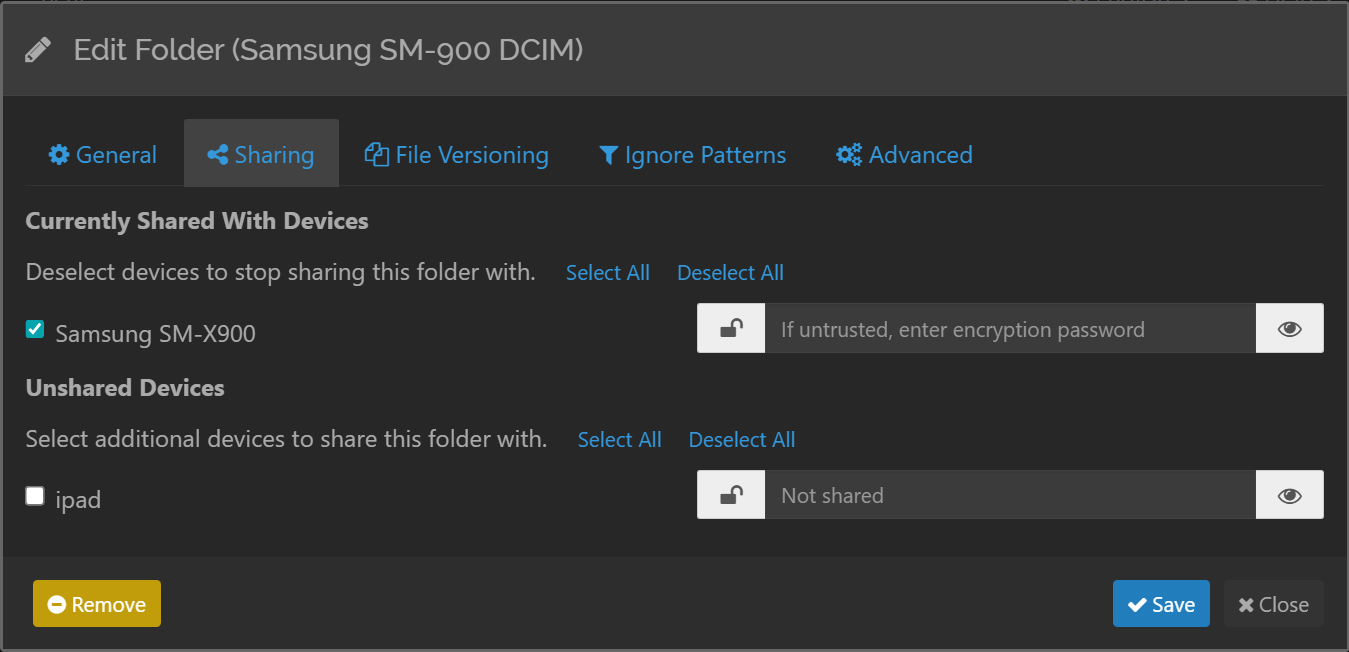
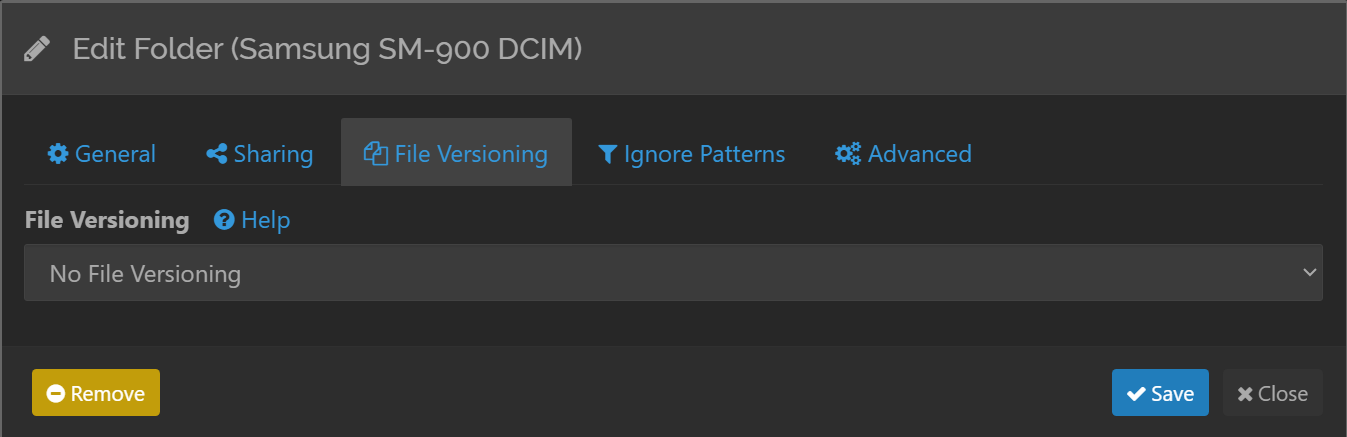
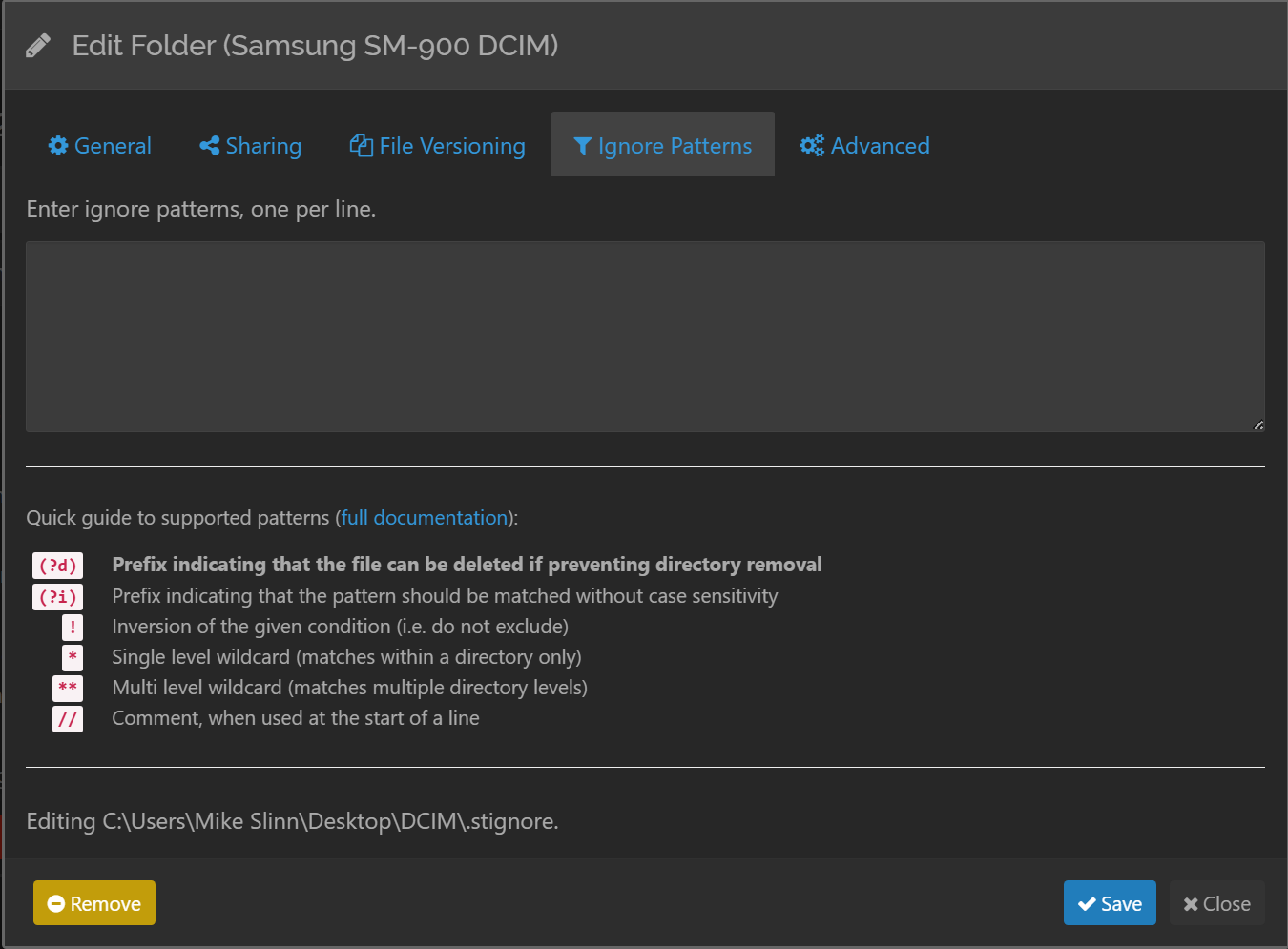
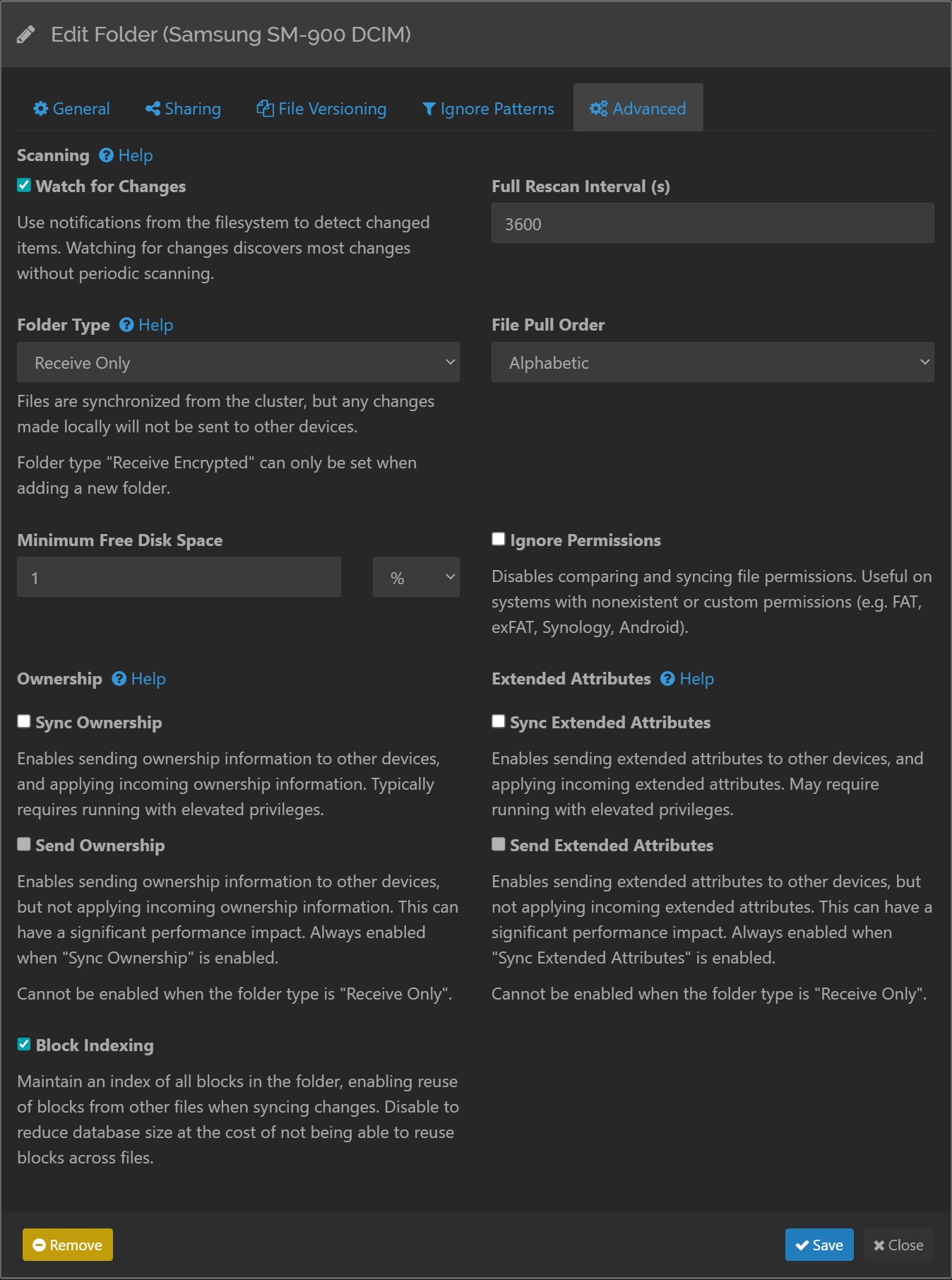
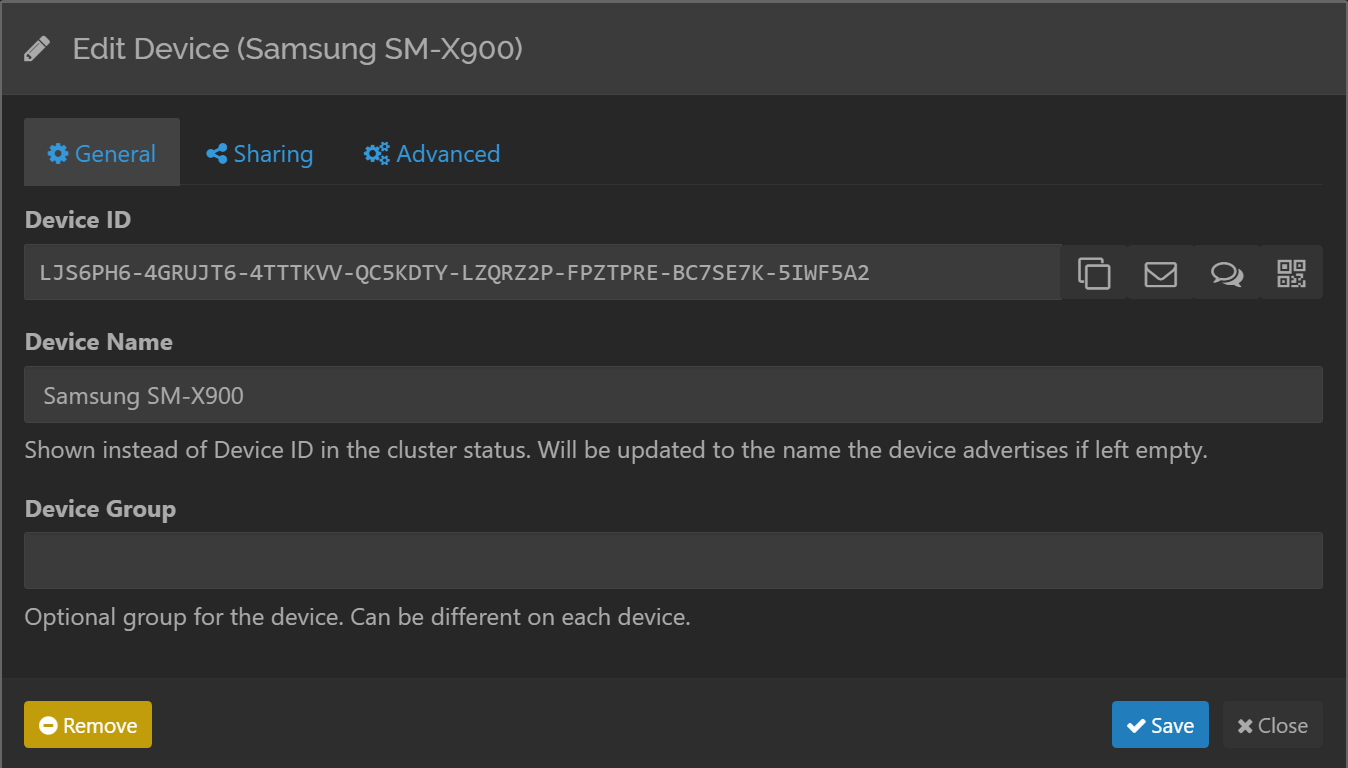
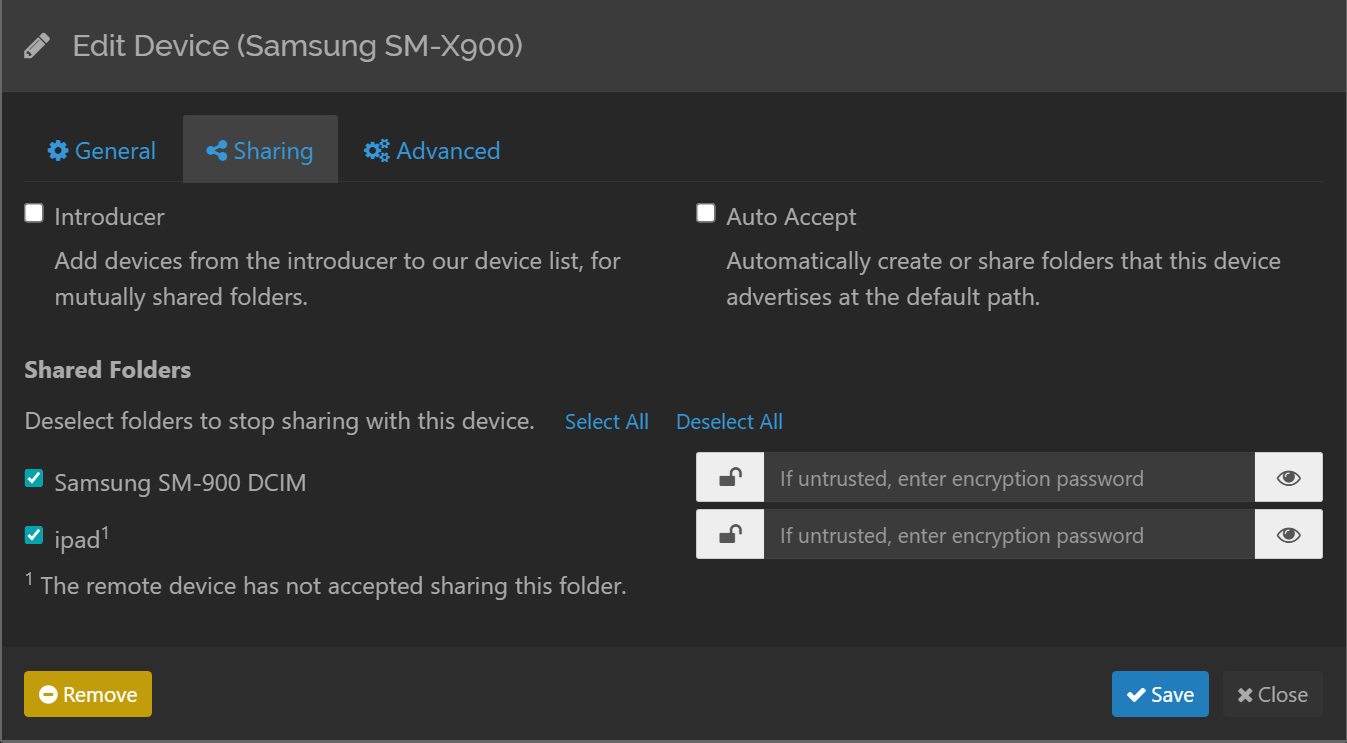
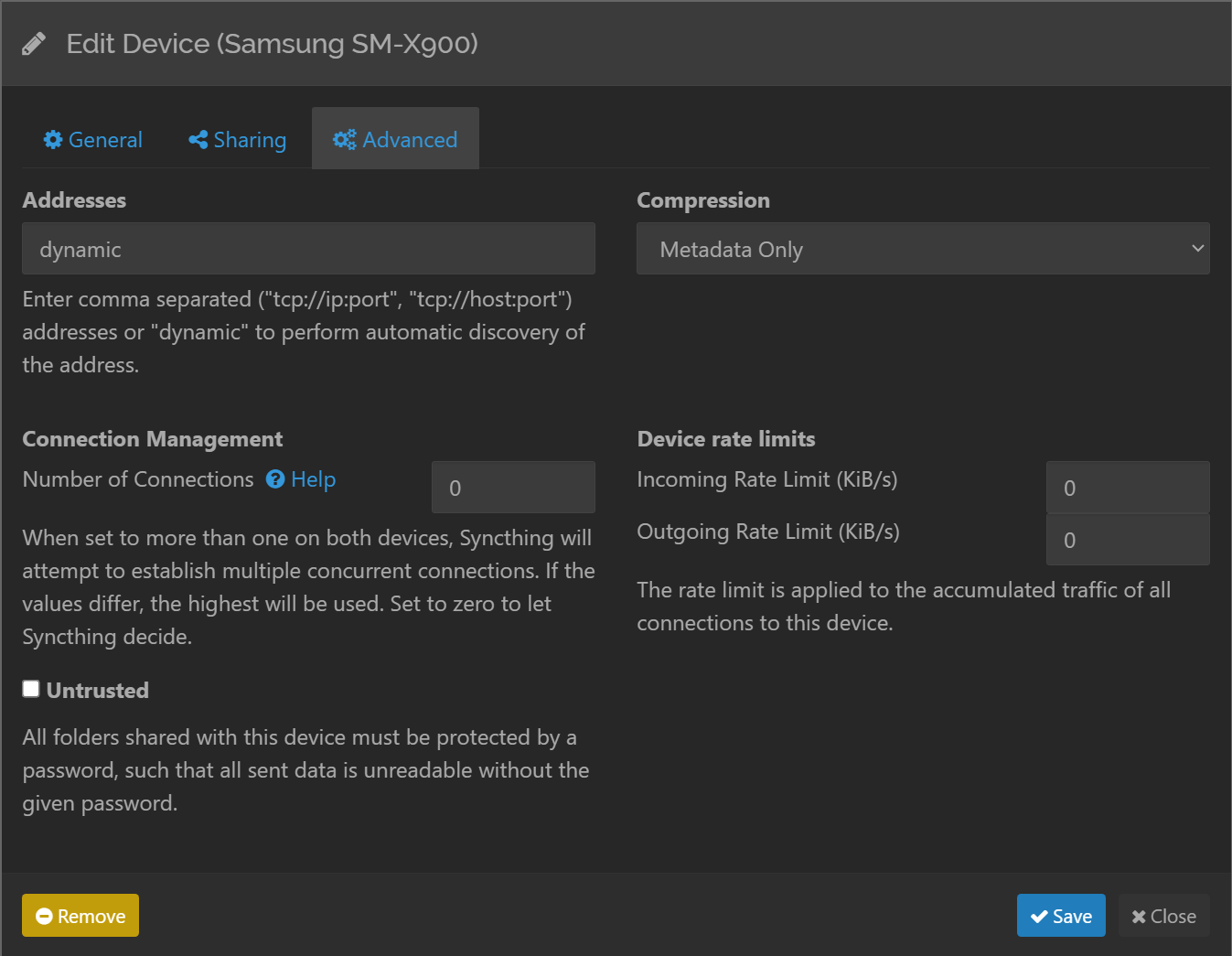
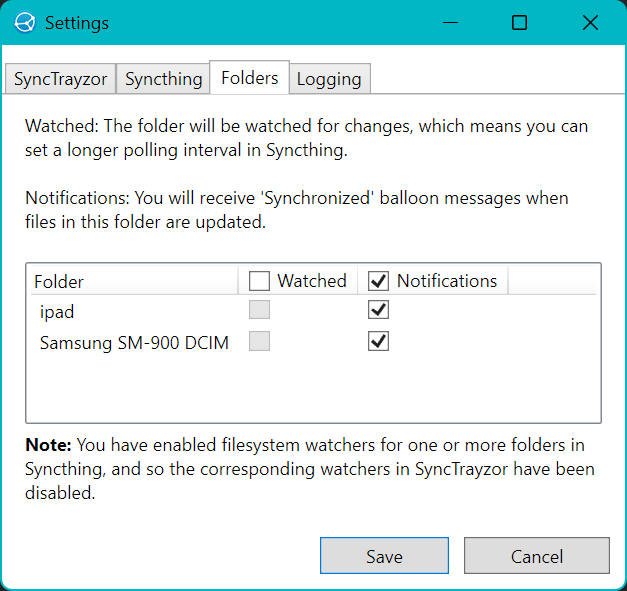
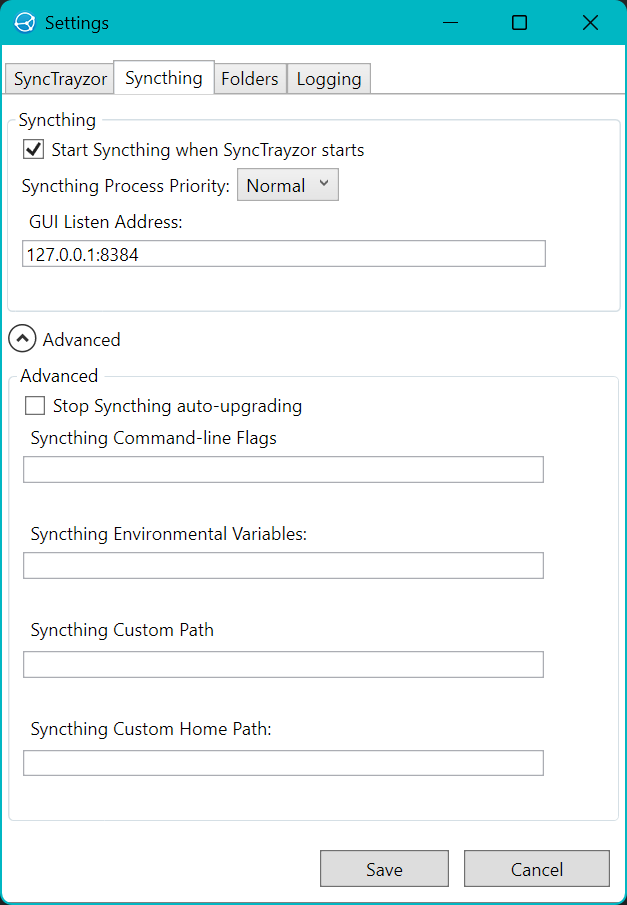
These images show the various aspects of two folders to be synchronized from two devices (a Samsung SM-900 and an iPad) to a Windows computer called Bear.
Folder Panels
Device Panels
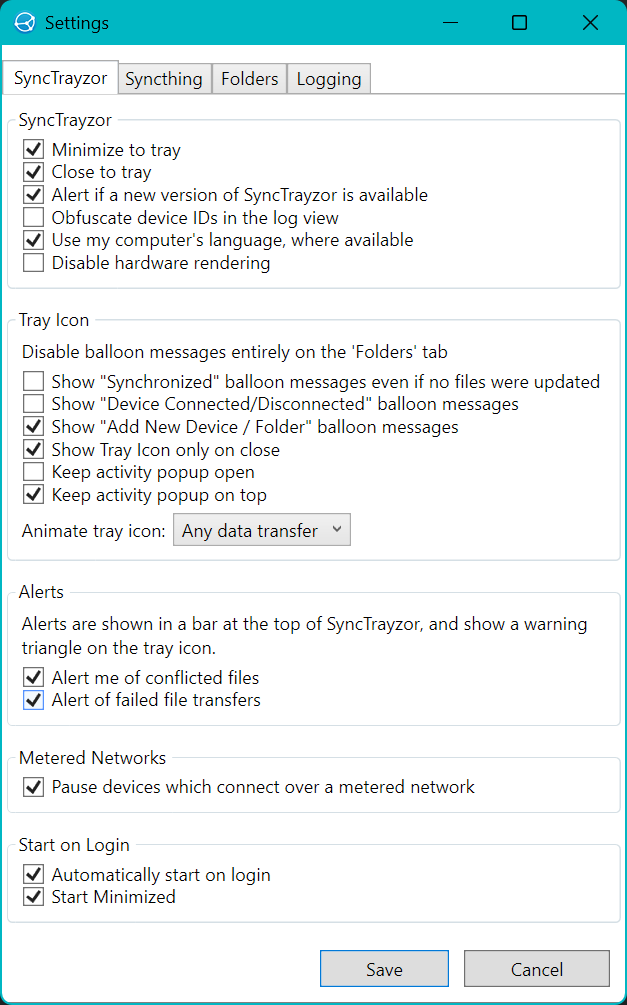
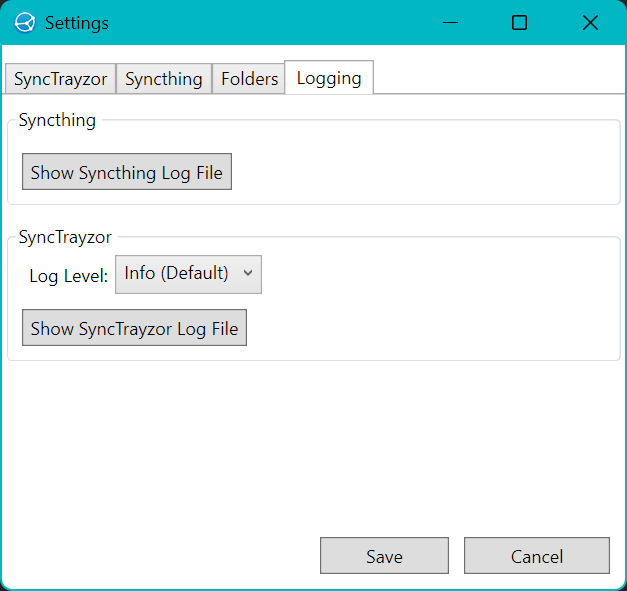
Settings
SyncTrayzor has four settings panels:
Step-by-Step Instructions
Install a Syncthing Client
The mobile device needs a Syncthing client.
Android
F-Droid is an app distribution ecosystem for Android, similar to Google Play.
Syncthing-Fork for Android is a wrapper for Syncthing that provides an Android UI instead of Syncthing's built-in Web UI. Browse the wiki for further information.
For Android, install Syncthing-Fork from the F-Droid website. The version of Syncthing-Fork provided by Google Play is often out of date.
Although you can install Syncthing-Fork without using F-Droid, that would mean no updates would be automatically installed. It is better to install F-Droid first, then install Syncthing-Fork from FDroid. Android will ask permission for:
- Installing apps from an unknown location
- Using storage
- Stop optimizing battery usage (this enables long-running daemons)
- Location (for WiFi); select all the time
- Notifications
- Key generation
Once installed, go to the Syncthing-Fork Settings / Behaviour menu and enable Autostart. This will start Syncthing-Fork automatically whenever the tablet starts.
You might also want to enable:
- Syncthing Options / Download Support Bundle, which is a built-in diagnostics tool used to generate a comprehensive technical overview of the device's syncing status.
See the Syncthing GUI documentation for further information.
iOS
For iOS, install SyncUp-Client from the Apple Store. Read why generic real-time daemons are unavailable for iOS devices, so photos will not be continuously copied to Windows as the photographer shoots footage.
Install SyncTrayzor
- Download and install SyncTrayzor on the Windows computer.
- Launch SyncTrayzor. When prompted by Windows Defender Firewall, click Allow Access for both Private and Public networks. This automatically configures the necessary application-wide firewall exceptions.
Verify Firewall Rules
To verify the Windows firewall rules for inbound traffic, first open PowerShell. One way to do this is to right-click the Windows Start button and select Terminal.
PS C:\Users\Mike Slinn> Get-NetFirewallApplicationFilter -Program "*syncthing.exe*" | `
Get-NetFirewallRule | `
ForEach-Object {
    $rule = $_
    $portFilter = $rule | Get-NetFirewallPortFilter
    [PSCustomObject]@{
        DisplayName = $rule.DisplayName
        Direction   = $rule.Direction
        Protocol    = $portFilter.Protocol
        LocalPort   = $portFilter.LocalPort
        Profile     = $rule.Profile
        Action      = $rule.Action
        Enabled     = $rule.Enabled
    }
} | Format-Table

DisplayName   Direction Protocol LocalPort         Profile Action Enabled
-----------   --------- -------- ---------         ------- ------ -------
syncthing.exe   Inbound UDP      Any       Private, Public  Allow    True
syncthing.exe   Inbound TCP      Any       Private, Public  Allow    True
Ensure the output shows Private, Public Allow True for inbound traffic on UDP and TCP.
Link the Mobile Device to the PC
- In Windows SyncTrayzor, click Actions (top right) and select Show ID to display your PC's unique pairing QR Code.
-
Open your mobile app to scan the code:
- On Android (Syncthing-Fork): Go to the Devices tab, tap the + icon, and tap the QR Code icon next to the Device ID field to launch the camera.
- On iPad (SyncUp-Client): Go to the Devices tab, tap the + icon, and select Scan QR Code.
- Scan your PC monitor with the mobile device camera.
- On the Windows computer, look at the bottom-right corner of SyncTrayzor. Click Add Device on the green notification bar, name it (iPad or Android Phone), and click Save. The devices are now securely linked.
Create the Mobile Source Folder
- On your mobile device, navigate to the Folders tab and tap the + icon to create a new sync source.
-
Configure the folder parameters:
- Folder Label: Type Sony Photo Bridge.
- Folder ID: Leave the automatically generated random string exactly as it is.
- Folder Path: Tap to select or create a new empty directory (e.g., a folder named SyncUp) in your local storage directory. This will be your export target.
- Before saving, look for the Devices toggle section inside the folder creation screen and turn on the toggle switch next to your Windows PC name.
- Save the folder. The mobile device is now broadcasting the folder offer directly to the PC.
Define the Shared Folder on Windows
- On Windows, notice that SyncTrayzor displays a green notification banner stating that your mobile device wants to share the folder Sony Photo Bridge.
- Click the Add button on that notification banner.
-
A configuration window will pop up on the PC. The Folder ID should
already be filled out for you.
In the Folder Path field, type the absolute path where you want the photos to land on your computer. For example, I typed:
C:\Users\Mike Slinn\Desktop\iPad
SyncTrayzor will automatically create this folder on your desktop if it does not already exist. Do not remove or rename this directory once set up.
Warning: On Windows, SyncTrayzor assumes the storage drive root isC:\Program Files\, which is a system protected directory. SyncTrayzor assumes relative paths are rooted there, which is unfortunate. Do not attempt to write into protected directories unless you have a reason to do so and know how to manipulate Windows permissions.- Click Save. The secure network bridge is now established and is awaiting media to copy.
Bulk Export the Sony Catalog
Android
- Open the Sony Creators’ App on your Android device and go to the Storage tab.
- Open the Imported Images archive folder.
- Long-press on the first file thumbnail to trigger the native checkbox selection mode.
- Tap the Select All / Master Checkbox located at the top-left section of the navigation header toolbar. This structural bypass skips the standard 100-image bulk constraint layout.
- With the entire catalog selected, tap the Share / Export icon in the action bar.
- Select your native system file manager (e.g., Files by Google or Copy to...) from the target system export share sheet pop-up window.
- Navigate to the local SyncUp directory folder you mapped to Syncthing-Fork in the previous section and tap Save.
iOS
- Open the Sony Creators’ App and go to the Storage tab.
- Open the Imported Images archive folder.
- Tap Select in the upper right corner.
- Tap the Master Checkbox located in the upper-left corner next to the date/folder header. This bypasses the app's 100-image individual selection ceiling and selects your entire photo collection instantly.
- With the selection modal open, tap the Share icon at the bottom of the screen.
- Select Save to Files from the native iOS pop-up share sheet.
- Navigate to the local directory folder you just mapped to SyncUp-Client in the previous step and tap Save.
Execute the Wireless Sync
-
Switch back to your respective file sync client dashboard app layer:
- On iOS (SyncUp-Client): Keep the app active and visually running open in the foreground. Because iOS will aggressively sleep background TCP uploads, keeping the app awake ensures the bulk transfer completes uninterrupted.
- On Android (Syncthing-Fork): You may safely minimize the layout or lock your screen; the upload process operates continuously as a persistent background daemon thread.
- The sync client will discover new photos in the mobile device directory, initiate an encrypted TLS upload connection, and stream your photos to your Windows computer folder.
Editing SyncTrayzor File Specifications
SyncTrayzor does not support editing paths once they are defined. The general SyncTrayzor config file is located at
%AppData%\SyncTrayzor\config.xml. Individual folder save paths and the Syncthing database are stored in%LocalAppData%\Syncthing\config.xmlTo safely modify the configuration files, both SyncTrayzor (the Windows UI frontend wrapper) and
syncthing.exe(the synchronization daemon) must be stopped.If SyncTrayzor is abruptly killed, the background
syncthing.exedaemon might continue running or stop mid-write, which risks corrupting the active database indexes.The best approach using PowerShell relies on standard, unforced process termination commands. When
Stop-Processis executed on Windows without the-Forceflag, it acts like a normal window-close or termination signal. SyncTrayzor receives the close request, which triggers its internal cleanup code and gracefully signalssyncthing.exeto shut down, which flushes its metadata caches to disk and exits.synctrazor_control.ps1
synctrazor_control.ps1# See https://mslinn.com/av_studio/sony_creators_to_windows.html # This PowerShell script stops the Synthing processes, senses when the config # file is modified, then restarts the processes $ConfigFile = "$env:LocalAppData\Syncthing\config.xml" $AppPath = "C:\Program Files\SyncTrayzor\SyncTrayzor.exe" # 1. Read the Syncthing REST API port and API key from the config file if (Test-Path $ConfigFile) { Write-Host "Extracting API properties..." -ForegroundColor Green [xml]$xml = Get-Content $ConfigFile $ApiKey = $xml.configuration.gui.apikey $GuiAddress = $xml.configuration.gui.address # Extract port number (usually matches 127.0.0.1:8384) if ($GuiAddress -match ':(?<port>\d+)') { $Port = $Matches['port'] } else { $Port = "8384" # Fallback default } } else { Write-Error "Could not read Syncthing config file to extract API keys." exit } # 2. Issue a REST API shutdown request if (Get-Process syncthing -ErrorAction SilentlyContinue) { Write-Host "Sending graceful REST API shutdown to Syncthing Core..." -ForegroundColor Green $Uri = "http://localhost:$Port/rest/system/shutdown" try { # Trigger the official shutdown endpoint $null = Invoke-RestMethod -Uri $Uri -Method Post -Headers @{"X-API-Key" = $ApiKey} -TimeoutSec 5 Write-Host "Syncthing Core database engine is shutting down..." -ForegroundColor Green } catch { Write-Host "API endpoint unreachable (Syncthing may already be stopping)." -ForegroundColor Gray } # Wait for the database engine to exit while (Get-Process syncthing -ErrorAction SilentlyContinue) { Start-Sleep -Seconds 1 } } # 3. Clean up any stuck SyncTrayzor UI wrapper $TrayzorProc = Get-Process SyncTrayzor -ErrorAction SilentlyContinue if ($TrayzorProc) { Write-Host "Closing remaining SyncTrayzor UI..." -ForegroundColor Green # Syncthing database is already safe, so we can stop the UI shell process now $TrayzorProc | Stop-Process -Force } Write-Host "Environment fully stopped. Safe to modify configuration." -ForegroundColor Green # 4. Setup the File System Watcher $TargetFolder = Split-Path $ConfigFile -Parent $TargetFile = Split-Path $ConfigFile -Leaf $Watcher = New-Object System.IO.FileSystemWatcher $Watcher.Path = $TargetFolder $Watcher.Filter = $TargetFile $Watcher.IncludeSubdirectories = $false $Watcher.EnableRaisingEvents = $true Write-Host "`nMONITORING ACTIVE; Please open and edit your config file:" -ForegroundColor Cyan Write-Host " $ConfigFile" -ForegroundColor White Write-Host "`nWaiting for you to save your changes..." -ForegroundColor Green $FileSaved = $false while (-not $FileSaved) { $ChangeResult = $Watcher.WaitForChanged([System.IO.WatcherChangeTypes]::Changed, 1000) if (-not $ChangeResult.TimedOut) { $FileSaved = $true } } $Watcher.Dispose() Write-Host "`nconfig.xml was modified and saved" -ForegroundColor Green Start-Sleep -Seconds 1 # Let the editor finish committing the file write lock # 5. Relaunch Write-Host "Relaunching SyncTrayzor..." -ForegroundColor Green if (Test-Path $AppPath) { Start-Process -FilePath $AppPath Write-Host "SyncTrayzor has been restarted successfully with the modified configuration data" -ForegroundColor Green } else { Write-Error "Could not find SyncTrayzor.exe at $AppPath. Verify your path configuration at the top of this script." }%AppData%\Syncthing\config.xml
Below is a sample
%AppData%\Syncthing\config.xml. This is the file that must be manually edited if you want to change a Synctrayzor File definition.<configuration version="52"> <folder id="wqw0q-5cqua" label="Dcim" path="~/iPad" type="sendreceive" rescanIntervalS="3600" fsWatcherEnabled="true" fsWatcherDelayS="10" fsWatcherTimeoutS="0" ignorePerms="false" autoNormalize="true"> <filesystemType>basic</filesystemType> <device id="JNEV6WA-AOFCV77-6HVJSRB-YJ5HJN4-VL3VH33-R4AEVM4-DMVSUX3-XMSJVAZ" introducedBy=""> <encryptionPassword></encryptionPassword> </device> <device id="KGZJGDW-7B3ZX5B-C33ZSBU-3Q3Z4WL-2QCYWRT-UVFXL2X-FLNUH4D-XTNHLQD" introducedBy=""> <encryptionPassword></encryptionPassword> </device> <device id="LJS6PH6-4GRUJT6-4TTTKVV-QC5KDTY-LZQRZ2P-FPZTPRE-BC7SE7K-5IWF5A2" introducedBy=""> <encryptionPassword></encryptionPassword> </device> <minDiskFree unit="%">1</minDiskFree> <versioning> <cleanupIntervalS>3600</cleanupIntervalS> <fsPath></fsPath> <fsType>basic</fsType> </versioning> <copiers>0</copiers> <pullerMaxPendingKiB>0</pullerMaxPendingKiB> <hashers>0</hashers> <order>random</order> <ignoreDelete>false</ignoreDelete> <scanProgressIntervalS>0</scanProgressIntervalS> <pullerPauseS>0</pullerPauseS> <pullerDelayS>1</pullerDelayS> <maxConflicts>10</maxConflicts> <disableSparseFiles>false</disableSparseFiles> <paused>false</paused> <markerName>.stfolder</markerName> <copyOwnershipFromParent>false</copyOwnershipFromParent> <modTimeWindowS>0</modTimeWindowS> <maxConcurrentWrites>16</maxConcurrentWrites> <disableFsync>false</disableFsync> <blockPullOrder>standard</blockPullOrder> <copyRangeMethod>standard</copyRangeMethod> <caseSensitiveFS>false</caseSensitiveFS> <junctionsAsDirs>false</junctionsAsDirs> <syncOwnership>false</syncOwnership> <sendOwnership>false</sendOwnership> <syncXattrs>false</syncXattrs> <sendXattrs>false</sendXattrs> <blockIndexing>true</blockIndexing> <xattrFilter> <maxSingleEntrySize>1024</maxSingleEntrySize> <maxTotalSize>4096</maxTotalSize> </xattrFilter> </folder> <folder id="ydujt-uvzji" label="ipad" path="C:\Users\Mike Slinn\Desktop\iPad" type="sendreceive" rescanIntervalS="3600" fsWatcherEnabled="true" fsWatcherDelayS="10" fsWatcherTimeoutS="0" ignorePerms="false" autoNormalize="true"> <filesystemType>basic</filesystemType> <device id="JNEV6WA-AOFCV77-6HVJSRB-YJ5HJN4-VL3VH33-R4AEVM4-DMVSUX3-XMSJVAZ" introducedBy=""> <encryptionPassword></encryptionPassword> </device> <device id="KGZJGDW-7B3ZX5B-C33ZSBU-3Q3Z4WL-2QCYWRT-UVFXL2X-FLNUH4D-XTNHLQD" introducedBy=""> <encryptionPassword></encryptionPassword> </device> <device id="LJS6PH6-4GRUJT6-4TTTKVV-QC5KDTY-LZQRZ2P-FPZTPRE-BC7SE7K-5IWF5A2" introducedBy=""> <encryptionPassword></encryptionPassword> </device> <minDiskFree unit="%">1</minDiskFree> <versioning> <cleanupIntervalS>3600</cleanupIntervalS> <fsPath></fsPath> <fsType>basic</fsType> </versioning> <copiers>0</copiers> <pullerMaxPendingKiB>0</pullerMaxPendingKiB> <hashers>0</hashers> <order>random</order> <ignoreDelete>false</ignoreDelete> <scanProgressIntervalS>0</scanProgressIntervalS> <pullerPauseS>0</pullerPauseS> <pullerDelayS>1</pullerDelayS> <maxConflicts>10</maxConflicts> <disableSparseFiles>false</disableSparseFiles> <paused>false</paused> <markerName>.stfolder</markerName> <copyOwnershipFromParent>false</copyOwnershipFromParent> <modTimeWindowS>0</modTimeWindowS> <maxConcurrentWrites>16</maxConcurrentWrites> <disableFsync>false</disableFsync> <blockPullOrder>standard</blockPullOrder> <copyRangeMethod>standard</copyRangeMethod> <caseSensitiveFS>false</caseSensitiveFS> <junctionsAsDirs>false</junctionsAsDirs> <syncOwnership>false</syncOwnership> <sendOwnership>false</sendOwnership> <syncXattrs>false</syncXattrs> <sendXattrs>false</sendXattrs> <blockIndexing>true</blockIndexing> <xattrFilter> <maxSingleEntrySize>1024</maxSingleEntrySize> <maxTotalSize>4096</maxTotalSize> </xattrFilter> </folder> <device id="JNEV6WA-AOFCV77-6HVJSRB-YJ5HJN4-VL3VH33-R4AEVM4-DMVSUX3-XMSJVAZ" name="Bear" compression="metadata" introducer="false" skipIntroductionRemovals="false" introducedBy=""> <address>dynamic</address> <paused>false</paused> <autoAcceptFolders>false</autoAcceptFolders> <maxSendKbps>0</maxSendKbps> <maxRecvKbps>0</maxRecvKbps> <maxRequestKiB>0</maxRequestKiB> <untrusted>false</untrusted> <remoteGUIPort>0</remoteGUIPort> <numConnections>0</numConnections> </device> <device id="KGZJGDW-7B3ZX5B-C33ZSBU-3Q3Z4WL-2QCYWRT-UVFXL2X-FLNUH4D-XTNHLQD" name="ipad" compression="metadata" introducer="false" skipIntroductionRemovals="false" introducedBy=""> <address>dynamic</address> <paused>false</paused> <autoAcceptFolders>false</autoAcceptFolders> <maxSendKbps>0</maxSendKbps> <maxRecvKbps>0</maxRecvKbps> <maxRequestKiB>0</maxRequestKiB> <untrusted>false</untrusted> <remoteGUIPort>0</remoteGUIPort> <numConnections>0</numConnections> </device> <device id="LJS6PH6-4GRUJT6-4TTTKVV-QC5KDTY-LZQRZ2P-FPZTPRE-BC7SE7K-5IWF5A2" name="Samsung SM-X900" compression="metadata" introducer="false" skipIntroductionRemovals="false" introducedBy=""> <address>dynamic</address> <paused>false</paused> <autoAcceptFolders>false</autoAcceptFolders> <maxSendKbps>0</maxSendKbps> <maxRecvKbps>0</maxRecvKbps> <maxRequestKiB>0</maxRequestKiB> <untrusted>false</untrusted> <remoteGUIPort>0</remoteGUIPort> <numConnections>0</numConnections> </device> <gui enabled="true" tls="false" sendBasicAuthPrompt="false"> <address>127.0.0.1:8384</address> <metricsWithoutAuth>false</metricsWithoutAuth> <apikey>wRhurkqsFurNAZ2Z4eYJTi7FRPgVbaPq</apikey> <theme>default</theme> <sessionCookieDurationS>604800</sessionCookieDurationS> <sessionCookiePath>/</sessionCookiePath> </gui> <ldap></ldap> <options> <listenAddress>default</listenAddress> <globalAnnounceServer>default</globalAnnounceServer> <globalAnnounceEnabled>true</globalAnnounceEnabled> <localAnnounceEnabled>true</localAnnounceEnabled> <localAnnouncePort>21027</localAnnouncePort> <localAnnounceMCAddr>[ff12::8384]:21027</localAnnounceMCAddr> <maxSendKbps>0</maxSendKbps> <maxRecvKbps>0</maxRecvKbps> <reconnectionIntervalS>20</reconnectionIntervalS> <relaysEnabled>true</relaysEnabled> <relayReconnectIntervalM>10</relayReconnectIntervalM> <startBrowser>true</startBrowser> <natEnabled>true</natEnabled> <natLeaseMinutes>60</natLeaseMinutes> <natRenewalMinutes>30</natRenewalMinutes> <natTimeoutSeconds>10</natTimeoutSeconds> <urAccepted>-1</urAccepted> <urSeen>3</urSeen> <urUniqueID></urUniqueID> <urURL>https://data.syncthing.net/newdata</urURL> <urPostInsecurely>false</urPostInsecurely> <urInitialDelayS>1800</urInitialDelayS> <autoUpgradeIntervalH>12</autoUpgradeIntervalH> <upgradeToPreReleases>false</upgradeToPreReleases> <keepTemporariesH>24</keepTemporariesH> <progressUpdateIntervalS>5</progressUpdateIntervalS> <limitBandwidthInLan>false</limitBandwidthInLan> <minHomeDiskFree unit="%">1</minHomeDiskFree> <releasesURL>https://upgrades.syncthing.net/meta.json</releasesURL> <overwriteRemoteDeviceNamesOnConnect>false</overwriteRemoteDeviceNamesOnConnect> <tempIndexMinBlocks>10</tempIndexMinBlocks> <trafficClass>0</trafficClass> <setLowPriority>true</setLowPriority> <maxFolderConcurrency>0</maxFolderConcurrency> <crashReportingURL>https://crash.syncthing.net/newcrash</crashReportingURL> <crashReportingEnabled>true</crashReportingEnabled> <stunKeepaliveStartS>180</stunKeepaliveStartS> <stunKeepaliveMinS>20</stunKeepaliveMinS> <stunServer>default</stunServer> <maxConcurrentIncomingRequestKiB>0</maxConcurrentIncomingRequestKiB> <announceLANAddresses>true</announceLANAddresses> <sendFullIndexOnUpgrade>false</sendFullIndexOnUpgrade> <auditEnabled>false</auditEnabled> <auditFile></auditFile> <connectionLimitEnough>0</connectionLimitEnough> <connectionLimitMax>0</connectionLimitMax> <connectionPriorityTcpLan>10</connectionPriorityTcpLan> <connectionPriorityQuicLan>20</connectionPriorityQuicLan> <connectionPriorityTcpWan>30</connectionPriorityTcpWan> <connectionPriorityQuicWan>40</connectionPriorityQuicWan> <connectionPriorityRelay>50</connectionPriorityRelay> <connectionPriorityUpgradeThreshold>0</connectionPriorityUpgradeThreshold> </options> <defaults> <folder id="" label="" path="" type="sendreceive" rescanIntervalS="3600" fsWatcherEnabled="true" fsWatcherDelayS="10" fsWatcherTimeoutS="0" ignorePerms="false" autoNormalize="true"> <filesystemType>basic</filesystemType> <device id="JNEV6WA-AOFCV77-6HVJSRB-YJ5HJN4-VL3VH33-R4AEVM4-DMVSUX3-XMSJVAZ" introducedBy=""> <encryptionPassword></encryptionPassword> </device> <minDiskFree unit="%">1</minDiskFree> <versioning> <cleanupIntervalS>3600</cleanupIntervalS> <fsPath></fsPath> <fsType>basic</fsType> </versioning> <copiers>0</copiers> <pullerMaxPendingKiB>0</pullerMaxPendingKiB> <hashers>0</hashers> <order>random</order> <ignoreDelete>false</ignoreDelete> <scanProgressIntervalS>0</scanProgressIntervalS> <pullerPauseS>0</pullerPauseS> <pullerDelayS>1</pullerDelayS> <maxConflicts>10</maxConflicts> <disableSparseFiles>false</disableSparseFiles> <paused>false</paused> <markerName>.stfolder</markerName> <copyOwnershipFromParent>false</copyOwnershipFromParent> <modTimeWindowS>0</modTimeWindowS> <maxConcurrentWrites>16</maxConcurrentWrites> <disableFsync>false</disableFsync> <blockPullOrder>standard</blockPullOrder> <copyRangeMethod>standard</copyRangeMethod> <caseSensitiveFS>false</caseSensitiveFS> <junctionsAsDirs>false</junctionsAsDirs> <syncOwnership>false</syncOwnership> <sendOwnership>false</sendOwnership> <syncXattrs>false</syncXattrs> <sendXattrs>false</sendXattrs> <blockIndexing>true</blockIndexing> <xattrFilter> <maxSingleEntrySize>1024</maxSingleEntrySize> <maxTotalSize>4096</maxTotalSize> </xattrFilter> </folder> <device id="" compression="metadata" introducer="false" skipIntroductionRemovals="false" introducedBy=""> <address>dynamic</address> <paused>false</paused> <autoAcceptFolders>false</autoAcceptFolders> <maxSendKbps>0</maxSendKbps> <maxRecvKbps>0</maxRecvKbps> <maxRequestKiB>0</maxRequestKiB> <untrusted>false</untrusted> <remoteGUIPort>0</remoteGUIPort> <numConnections>0</numConnections> </device> <ignores></ignores> </defaults> </configuration>Using The Script
Here is an example of running
synctrazor_control.ps1under PowerShell on Windows:Running synctrazor_control.ps1 under PowerShell$ F:\work\mslinn_bin\misc\synctrazor_control.ps1 Extracting API properties... Sending graceful REST API shutdown to Syncthing Core... Syncthing Core database engine is shutting down cleanly... Environment fully stopped. Safe to modify configuration. MONITORING ACTIVE; Please open and edit your config file: C:\Users\Mike Slinn\AppData\Local\Syncthing\config.xml Waiting for you to save your changes...
Once you modify
%AppDataLocal%\Syncthing\config.xmland save it, the script will continue:config.xml was modified and saved Relaunching SyncTrayzor... SyncTrayzor has been restarted successfully with the modified configuration dataPoor Multitasking on iOS
If an app is visually sharing the screen, iOS classifies it as a foreground process and cannot suspend its network activity. There are two ways to do this:
- Using Split View overcomes this iOS limitation. Open the Sony Creators’ App, then drag the SyncUp-Client icon from your dock to the left or right edge of your screen to place them side-by-side.
- Slide Over: While working inside the Sony Creators’ App, swipe up slightly from the bottom edge to reveal your app dock. Drag the SyncUp-Client icon directly over the center of your screen to let it hover as a floating window pane on the side.
By letting SyncUp-Client sit on just 25% of your screen while you use the remaining 75% for your Sony app selections, both apps remain in the foreground and network activity is much more reliable.
However, this is still not a true continuous background daemon. iOS does not allow continuous background execution for
BGTaskSchedulerjobs; they typically get only about 1–2 hours of opportunistic sync per day when the app is daemonized, with possible multi-hour gaps. This is inadequate for my requirement.For more information, see Keeping a TCP connection alive when an app is backgrounded.














© Copyright 1994-2026 Michael Slinn. All rights reserved.
For requests to use this copyright-protected work in any manner, email mslinn@mslinn.com.
This website was made using Jekyll and Mike Slinn’s Jekyll Plugins. - Click Save. The secure network bridge is now established and is awaiting media to copy.